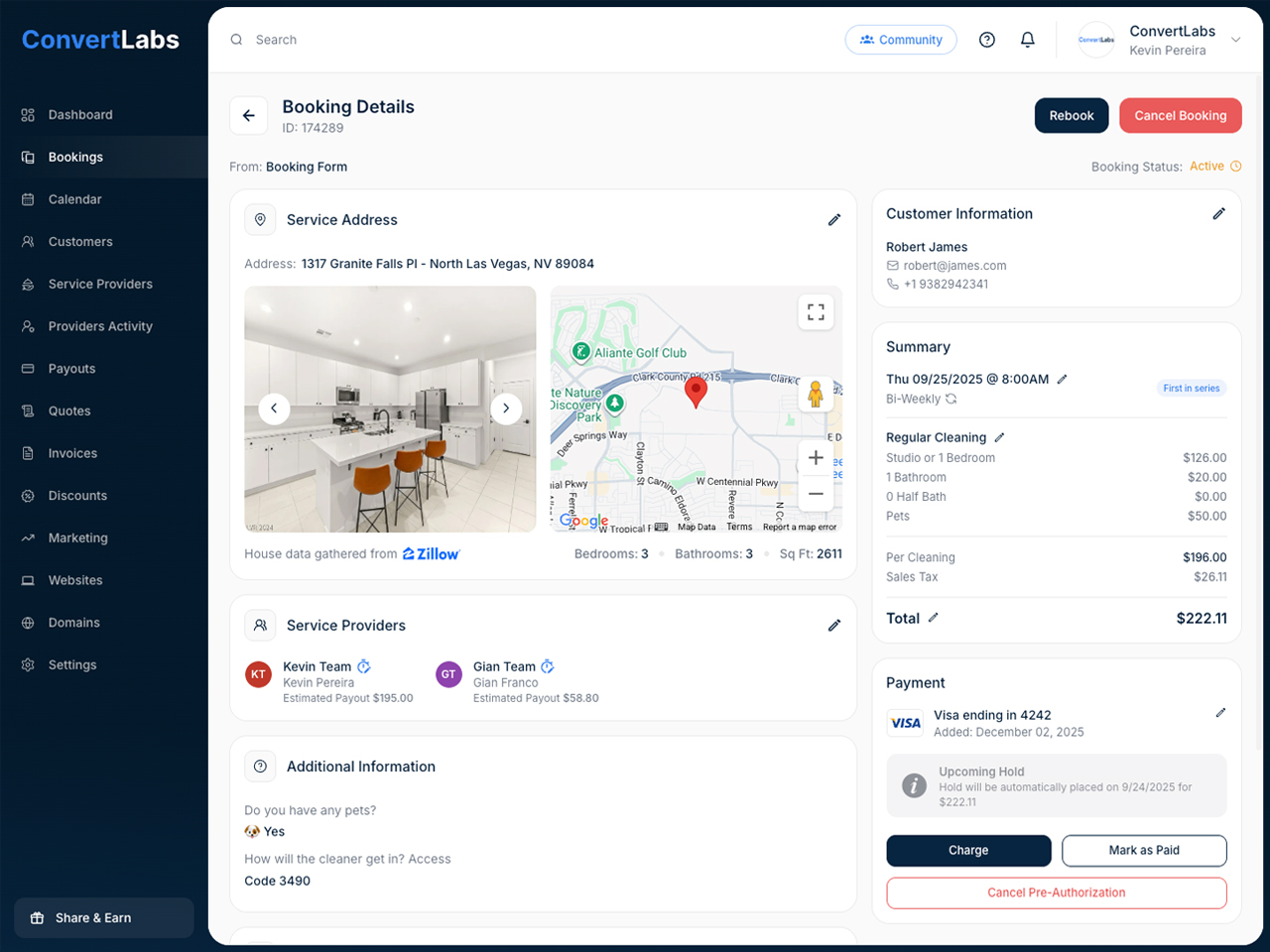
In this section, you will see information such as:
-
Booking ID.
-
Customer contact information: name, email address and phone number.
-
Booking summary: date, time, frequency, category, services, and total amount.
-
Payment details, including the payment method used.
-
Address and the map view.
-
Zillow data (when available).
-
Assigned service providers.
- If the provider has already checked in, you will see the status as working; once they check out, you will see the time worked.
-
Notes and additional information.
-
Change history.
What can you do from the Booking Details page?
-
Edit any part of the booking, including rescheduling if needed.
-
Add internal notes visible to you and the assigned provider.
-
Assign or update the payment method.
-
Assign or change service providers.
-
Edit the hours worked by service providers when necessary.
How to edit a booking?
Click the pencil icon in the section you want to update. This will open the corresponding editor so you can make changes.
How to add or edit notes?
Go to the Notes section and click the pencil icon. Enter any relevant information, then save your updates.
How to assign a Service Provider?
In the Service Providers section, click the pencil icon. A window will appear showing all available Service Providers, along with options to assign or invite them.
How to edit hours worked?
Within the Providers section, click the clock icon. Enter the provider’s check-in and check-out times, then save your changes.
