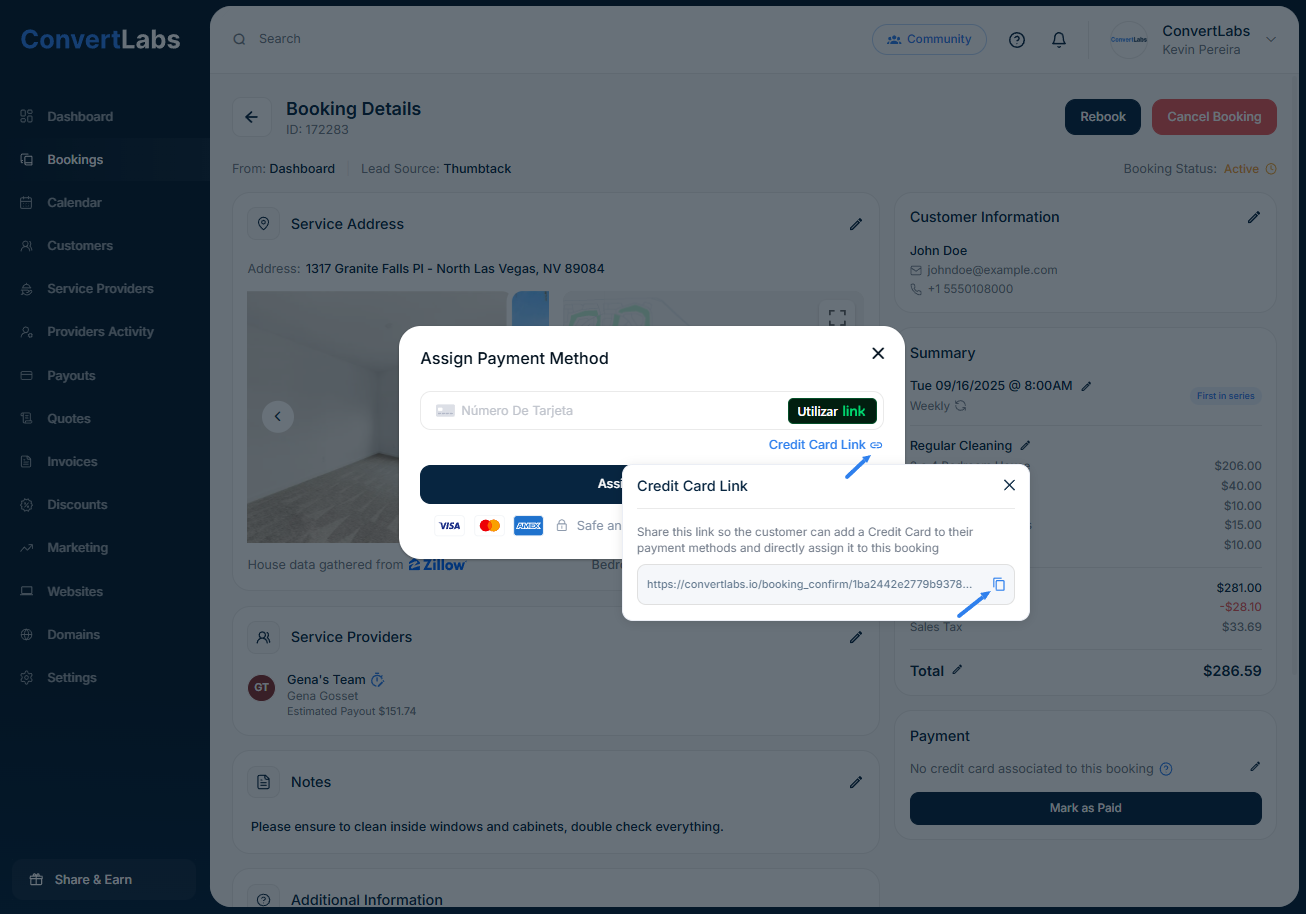
Option 1: From a Booking
-
Go to the Bookings List.
-
Click the pencil icon (✏️) next to the relevant booking to open its details.
-
In the Payment section, click the pencil icon again.
-
Select Credit Card Link.
-
Click the copy icon (📋) to copy the link.
-
Share it with your client via email, text, or your preferred communication channel.
- Once your client enters the payment details, the card is automatically linked to the booking and its future recurrences.
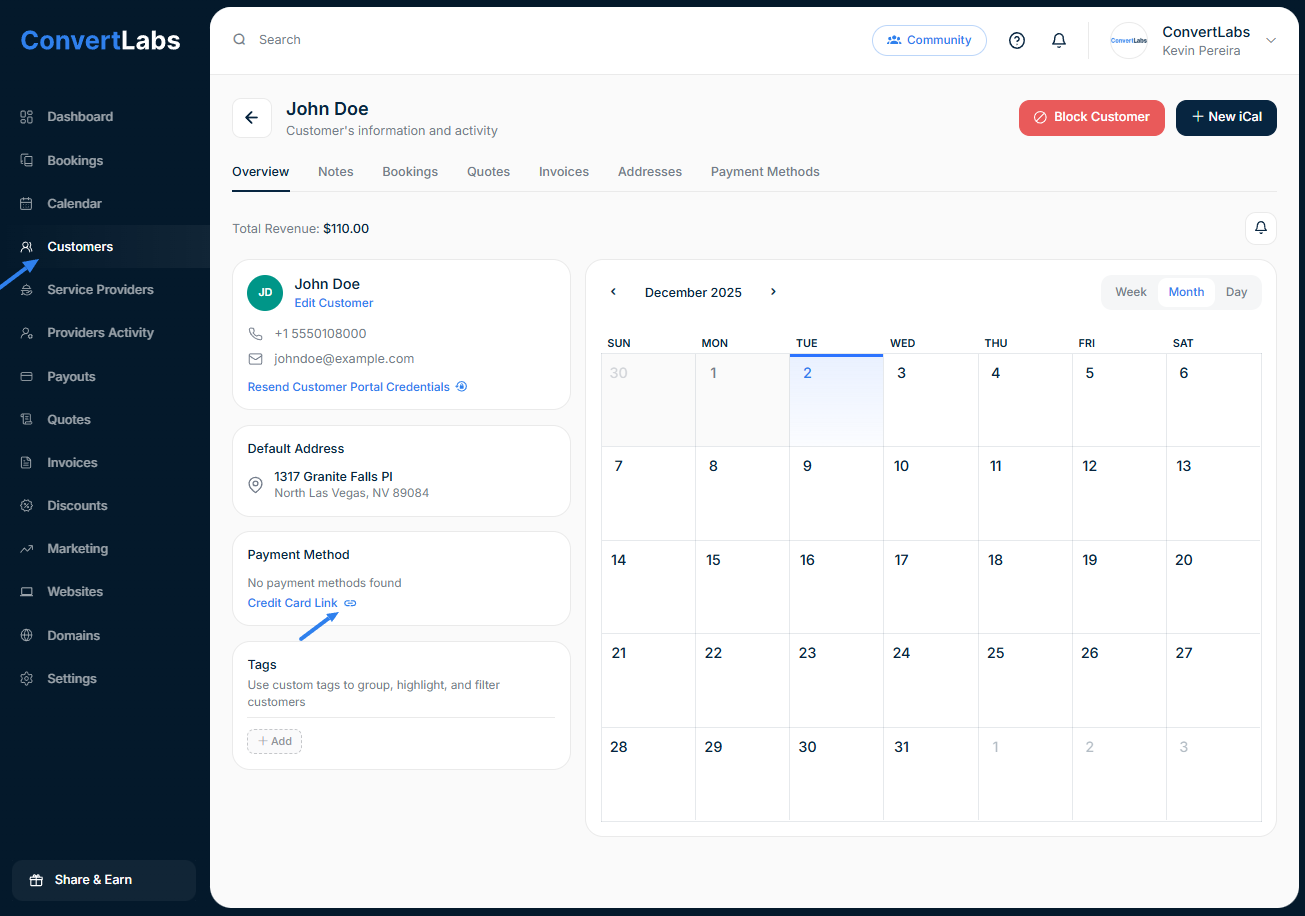
Option 2: From the Client Profile
Use this option to save the card on file for the client (not tied to a specific booking).
-
Go to the Customers tab.
-
Locate the client and click their name to open their profile.
-
In the Payment Method box, click the link icon (🔗).
-
Click the copy icon (📋) to copy and share the link.
When the client enters their card details, the information will be securely stored on their profile and available for future use.
💳 Assign a Saved Credit Card to a Booking
-
Go to the Bookings List.
-
Open the relevant booking by clicking the pencil icon (✏️).
-
In the Payment section, click the pencil icon.
-
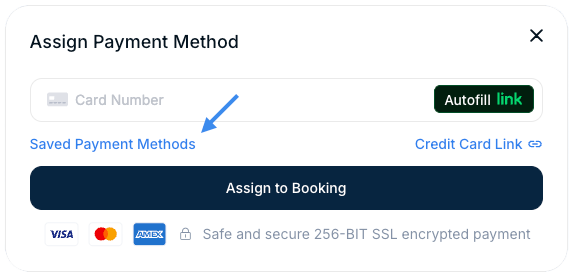
Select Saved Payment Methods.
-
Choose the correct card to assign it to the booking.