Tailor your service offerings and pricing to perfectly match your business.
While we provide default pricing for cleaning companies, you have full flexibility to modify or create your own.
💡 Tip: You can use our Categories feature to organize your services into pricing packages. For example:
-
Standard Cleaning
-
Deep Cleaning
Each category can include a set of related services for a more organized structure.
How To Customize Services in ConvertLabs
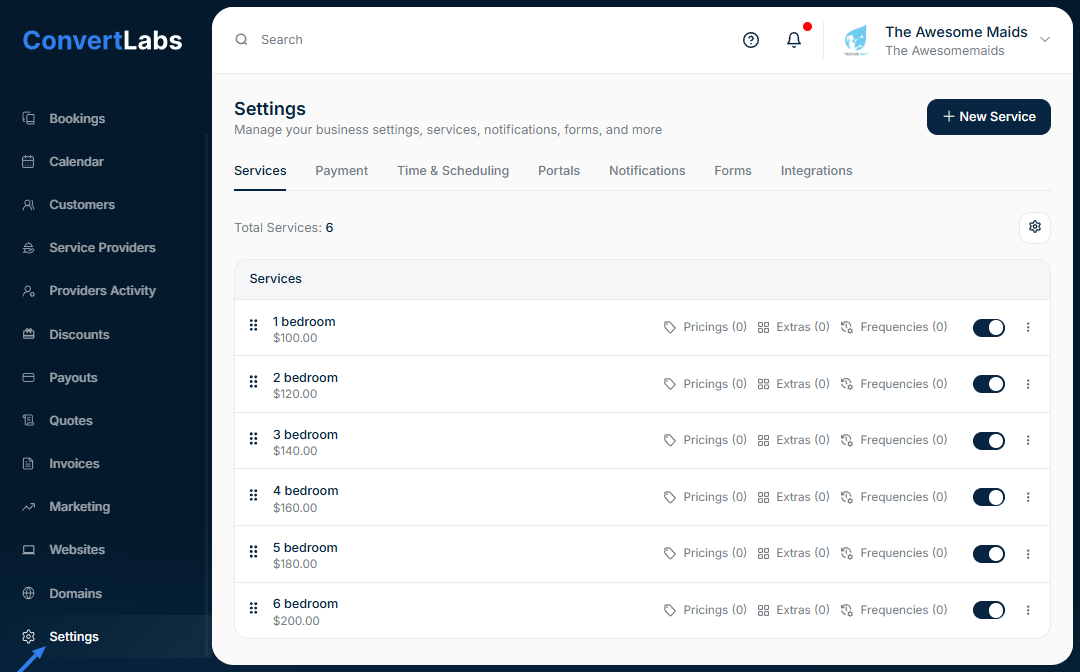
Go to Settings → Services.
You can either edit the default services or create new ones.
Editing Default Services
Just click on the Service and edit the price, then click "Save Changes".
You can also edit the Pricing Parameters, Extras and Frequencies.
Since the same pricing parameters, extras, and frequencies are assigned to all services, if you edit any of these, they will be automatically updated in the other services.

Creating New Ones
You can always create new services, or if you wish to start fresh, it’s recommended to remove all existing services first — this simplifies setup.
Then:
-
Click New Service (top-right corner).
-
Add the Service Name, Price, Duration in minutes and (if enabled) Category.
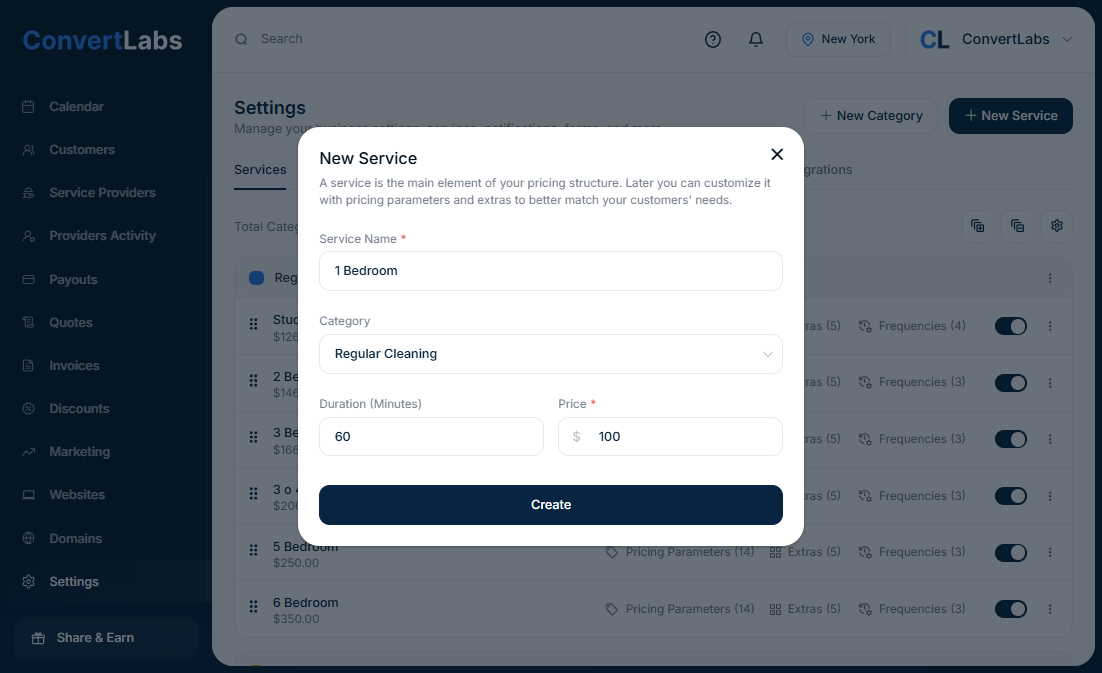
📝 Recommendation: Create all your services first, then assign other elements (such as pricing parameters, extras, and frequencies) afterward. This ensures a smoother setup process.
📊 Pricing Parameters
Pricing Parameters are customizable inputs that influence service pricing and improve estimate accuracy based on specific job details, like bathrooms, half-bathrooms, square footage, etc.
To Add a New Pricing Parameter:
-
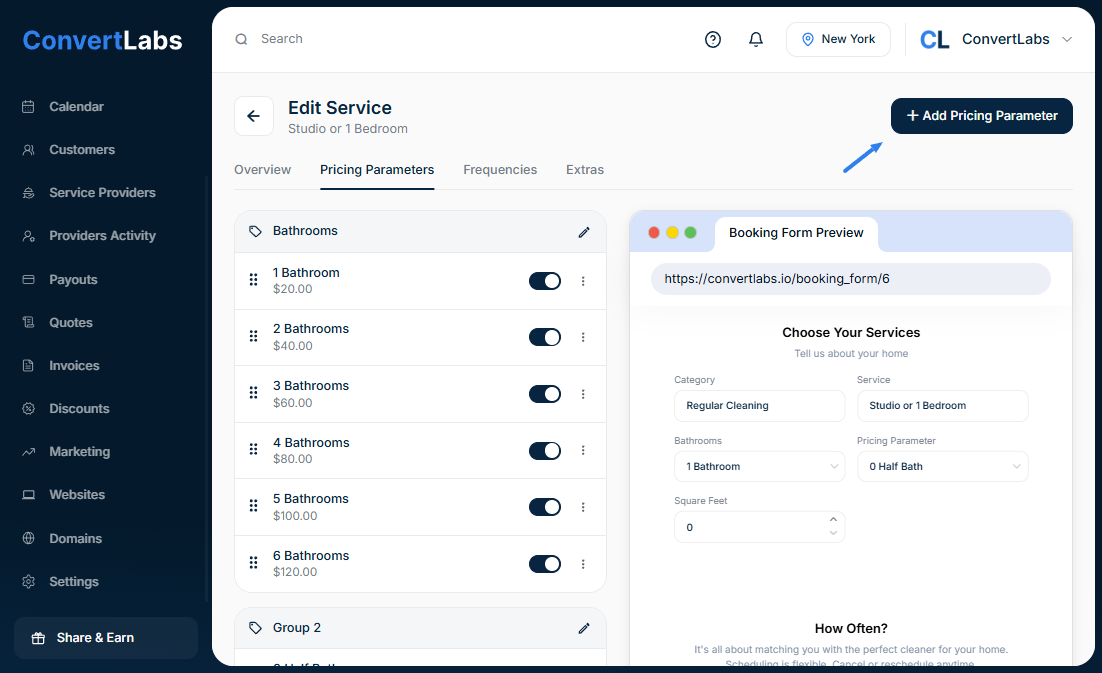
Click on the first service or the service you’d like to add a new pricing parameter.
-
Go to the Pricing Parameters tab.
-
Click “Add Pricing Parameter”.
-
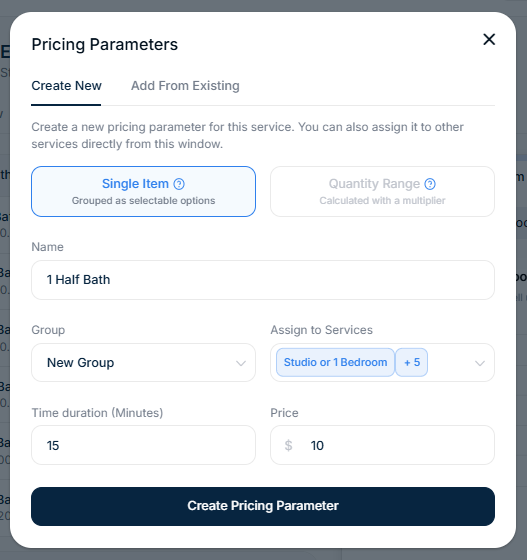
Choose to add a Single Item or Quantity Range.
Single Item:
This option lets you set up pricing parameters as individual items that can be organized into groups, such as Bedrooms or Bathrooms. This structure offers greater flexibility—you don’t need to follow a strict order of prices or parameters. Each item works independently, and each group is displayed as a dropdown menu, similar to how services are presented.
-
Enter name.
-
Choose the corresponding group or select new.
-
You can assign it to other services as well at the same time that you’re creating it.
-
Enter the time duration (minutes).
-
Enter price.
Quantity Range:
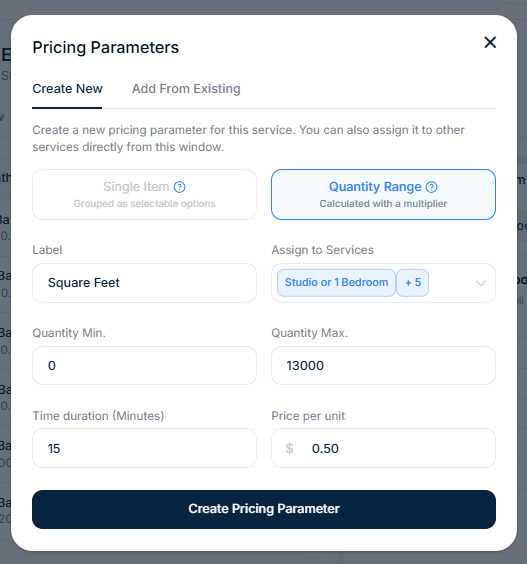
This option lets you set up pricing parameters quickly and easily—perfect if your pricing follows a consistent increase pattern (e.g., price per square foot). It allows clients to enter their exact room or home measurements, ensuring an accurate price every time.
How to Set It Up
-
Select the “Quantity Range” option.
-
Enter the name.
-
Assign the range to other services if needed.
-
Set the minimum and maximum quantities you want to offer.
-
Specify the duration.
-
Add price per unit.
For instance,
If every bathroom cleaning costs $20, create this setup once, and the system will automatically calculate the total based on the number of bathrooms.
Or if you charge $0.50 per square foot, this option is ideal—it automatically adjusts the total based on the client’s entered measurements.
To Add Pricing Parameters from Existing:
-
Select the pricing parameters from the existing list.
-
Click "Update Service" to apply them.
🔁 Frequencies
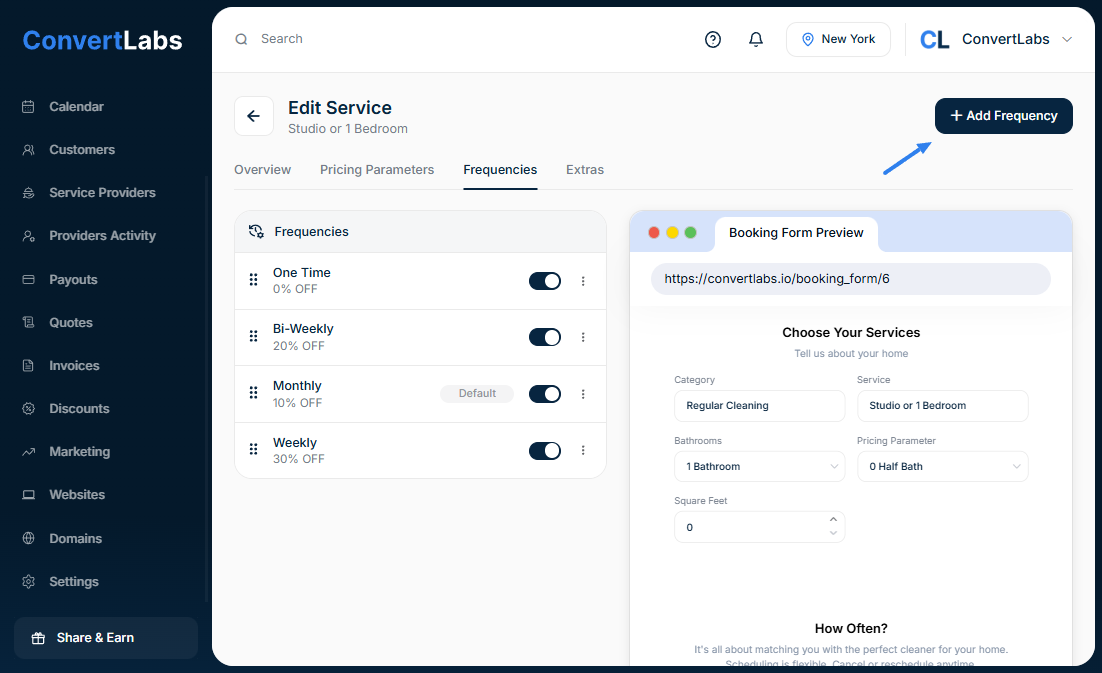
Frequencies define how often a service recurs and the associated discounts.
To Add a New Frequency:
-
Click on the first service or the service you’d like to add a new frequency.
-
Go to the Frequencies tab.
-
Click the “Add Frequency” button.
- Enter the name (e.g., Weekly, Biweekly, Monthly).
- Choose the Interval (time between bookings).
- Discount Type: Choose between Percentage or Fixed Price.
- Discount Value: Enter the discount amount (can be 0).
- Set as Default: Optional — mark one as the default frequency.
-
You can assign it to other services as well at the same time that you’re creating it.
-
And click "Create Frequency" to save.

To Add from Existing Frequencies:
-
Select one or more frequencies from the existing list.
-
Click ‘Update Service’ to apply them.
Note: To ensure proper functionality of the booking form and system, each service must have at least one assigned frequency (e.g., “One Time”).
Services without an assigned frequency will be excluded from the booking form.
➕ Add Extras
Extras allow you to offer optional add-ons that your customers can select when booking your services.

Follow these steps to add a new extra:
-
Click on the first service or the service you’d like to add a new extra.
- Go to the Extras tab.
-
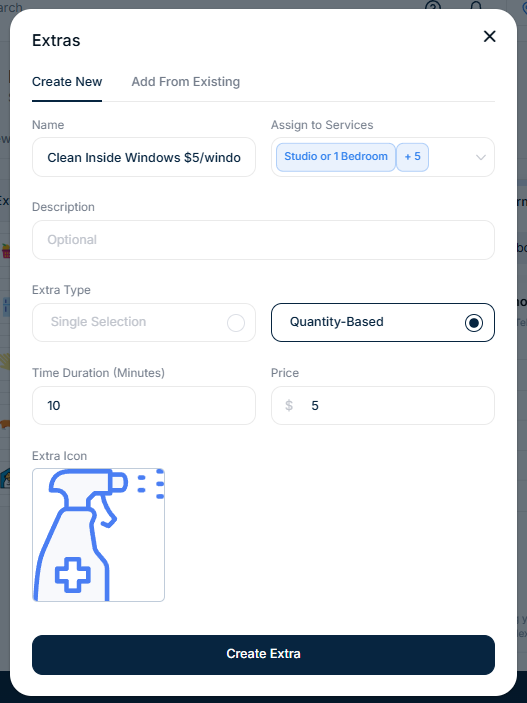
Click the “Add Extra” button to create a new extra.
-
Enter the name of the extra.
-
You can assign it to other services if you want it to be available in more than one category or service.
-
Add a description (optional): This will appear when a user hovers over the extra in the desktop view.
-
Select the extra type:
- Single selection: The user can only select one unit of this extra.
- Quantity based: The user can select multiple units of the same extra.
🧩 Example:
If you want to add the “Windows” extra, you can set it as quantity based if you allow it to be added more than once.
-
Add an icon representing the extra: Search for related icons to make the interface more visual and easier to understand.
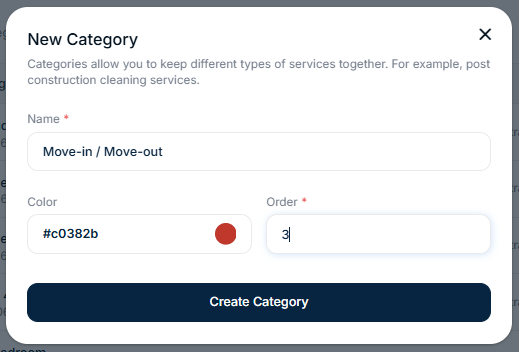
🗂️ How to Create Categories
Categories are optional, they allow you to group related services under a single umbrella — perfect for structuring your offerings.
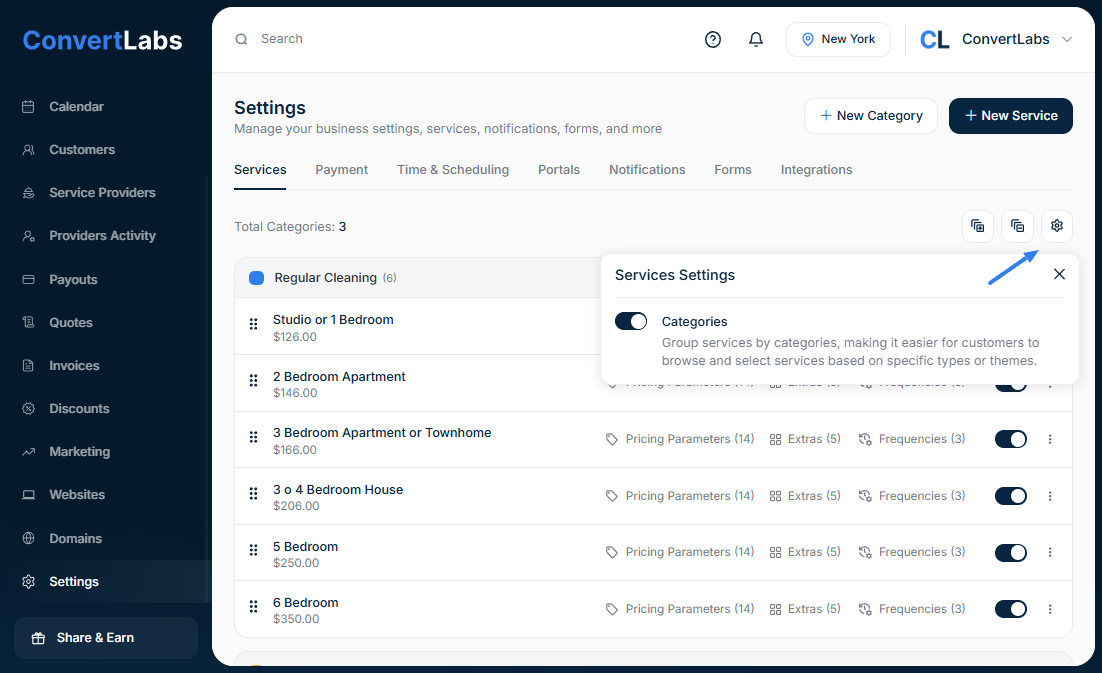
To enable and use Categories:
-
Activate Categories under Settings → Services.
-
Create new categories such as Residential Cleaning, Commercial Cleaning, etc.
-
Assign existing services or create new services to the appropriate category.
- To assign existing services, simply drag and drop the services into the corresponding category.
This helps your customers easily understand your offerings and choose the right service type.
