To add a quote to your calendar:
-
Go to the Quotes view.
-
Click the three-dot menu next to the quote.
-
Select Add quote to calendar.

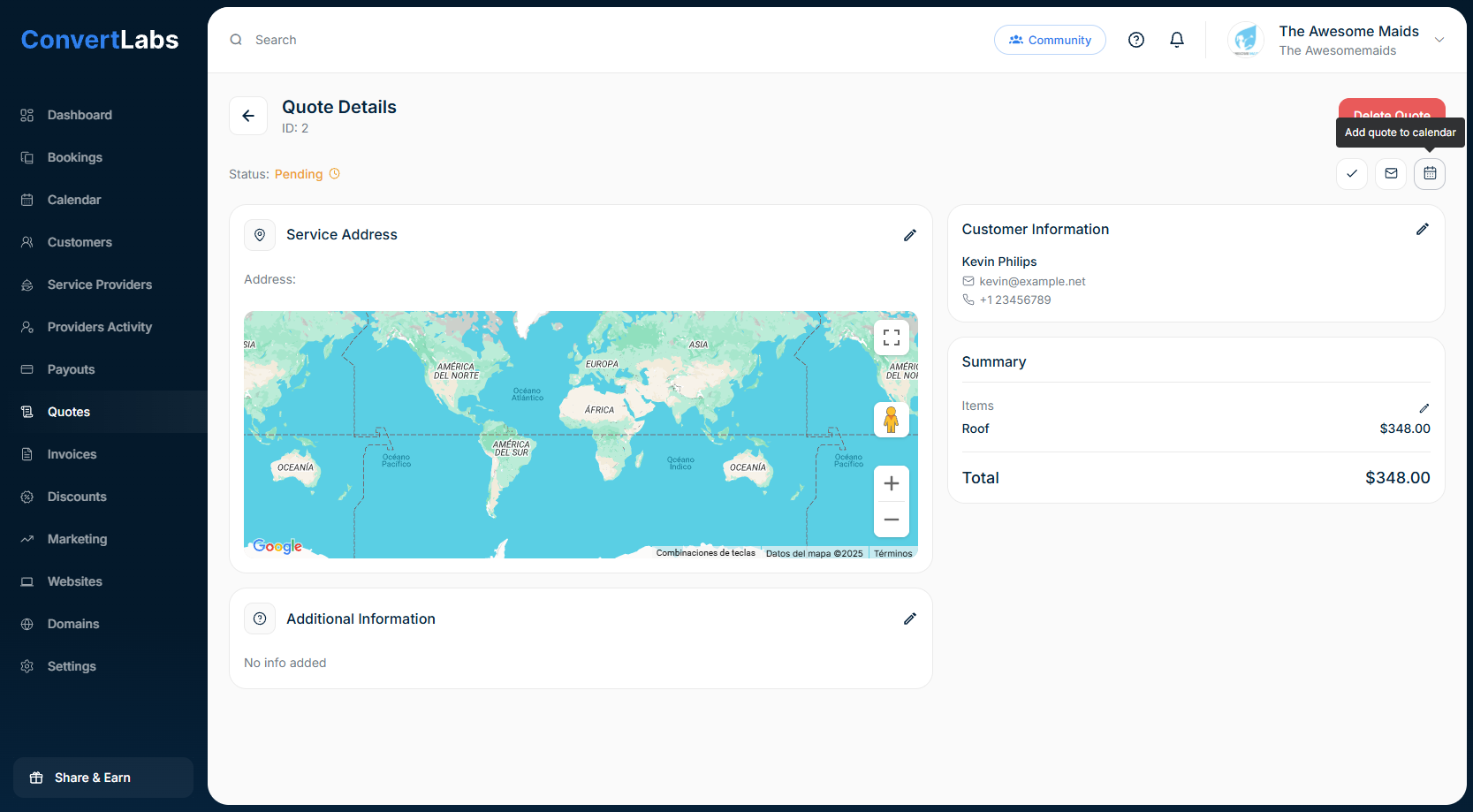
You can also add the quote to the calendar from the quote details view; to do this, simply click on the pencil icon to view or edit, and then click on "Add quote calendar" at the top right.
Calendar Behavior
Adding a quote to the calendar helps with scheduling and visibility. The quote will also appear in your bookings list. However, it does not behave like a booking:
-
No card hold is applied.
-
Providers cannot view quote details in the Service Providers Portal.
