This ensures only the time they are available appears in your scheduling view.
How to Update Availability
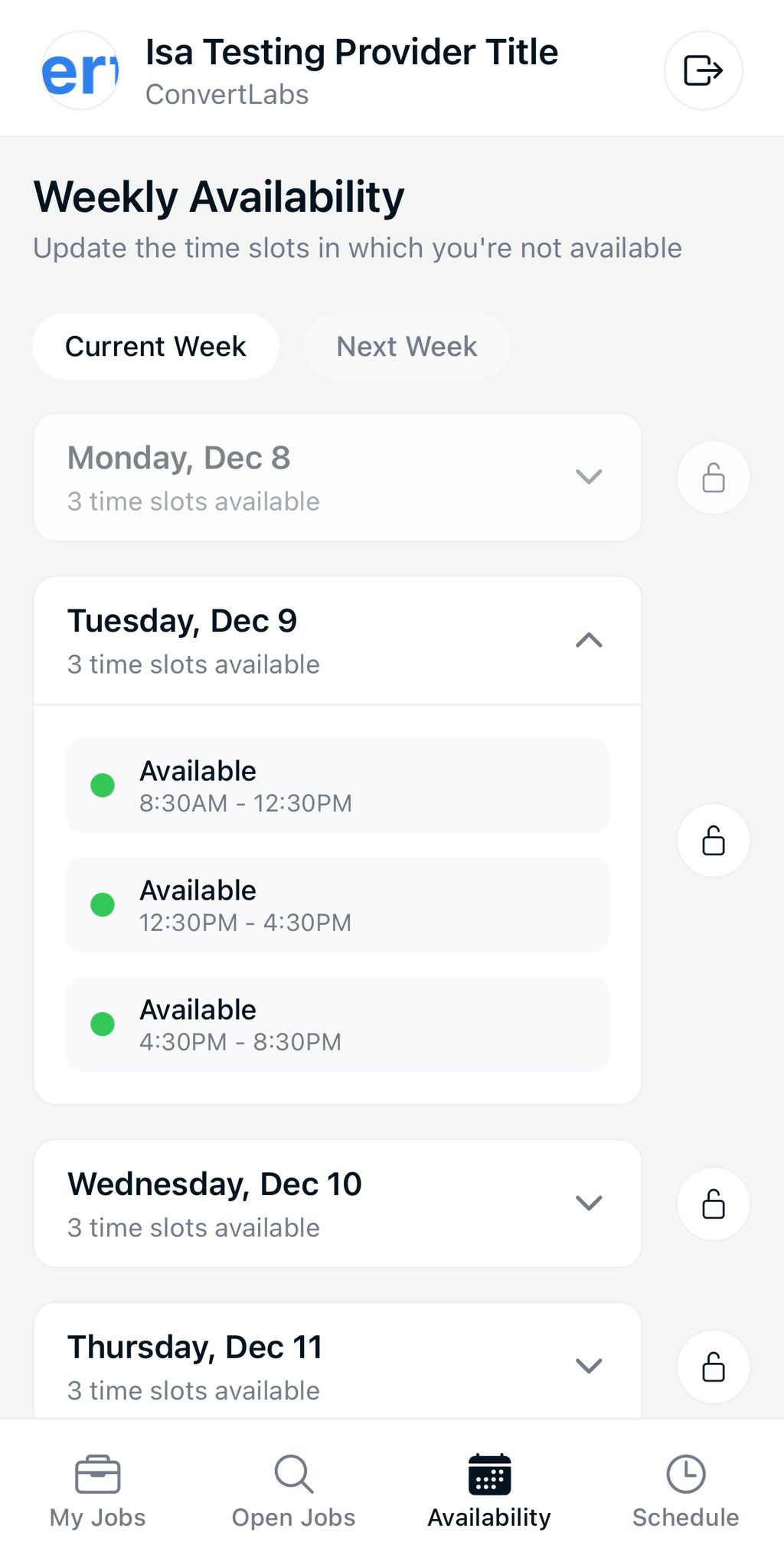
- Go to the Availability tab in the portal.
- Select the current week or navigate to the next week.
- Tap the day you want to update. You’ll see three available time slots for that day:
8:30 a.m. – 12:30 p.m.
12:30 p.m. – 4:30 p.m.
4:30 p.m. – 8:30 p.m. - To block availability, simply tap the time slot(s) you want to mark as unavailable.
- To block the entire day, click the padlock icon located next to the time slots.
This allows providers to easily mark when they’re unavailable for the current or upcoming week.
