From here, you can update logos, colors, navigation styles, contact details, social links, and embedded scripts. Changes made in this section apply across the entire website.
Access the Header and Footer Customization Settings
- Go to Websites and click Edit Website to go to your Website's Dashboard.
- Click the house icon in the upper-right corner to view your website.
- You will see your live website with the editor bar at the top.
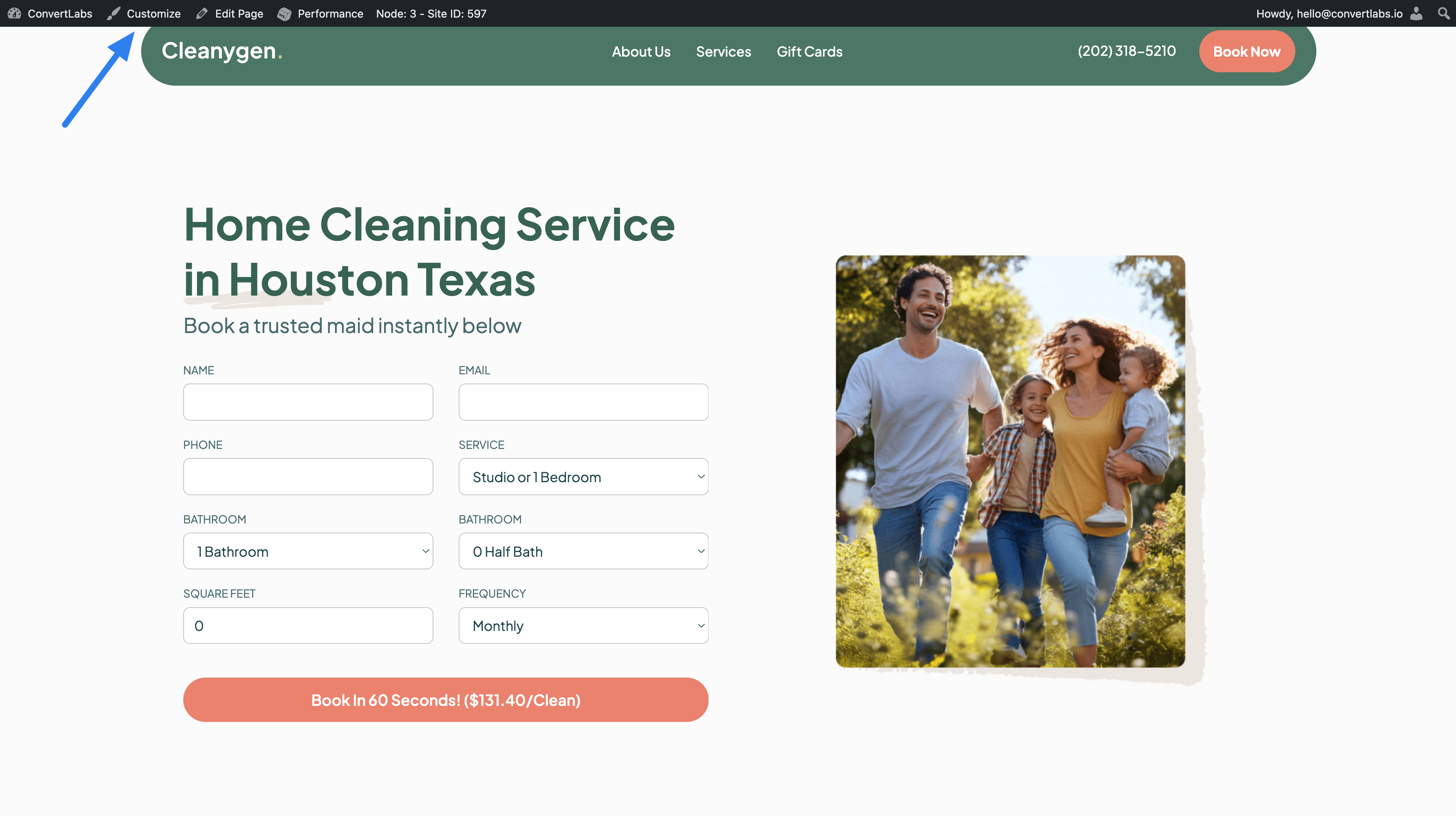
- Click Customize to open the global customization options.
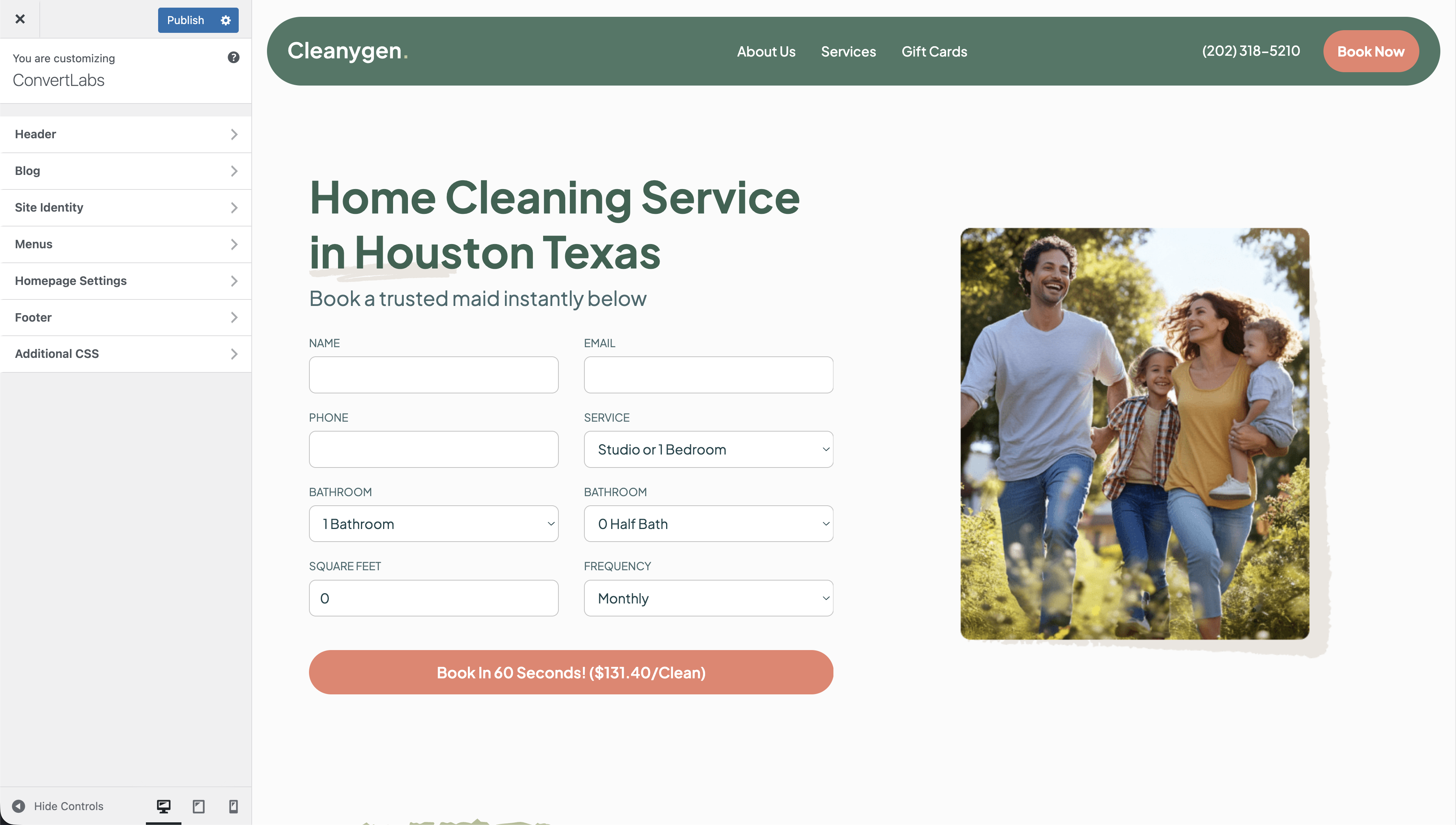
Customize the Header
- In the Customize panel, click Header.
- You can edit the following header settings:
- Header logo
- Menu color
- Button background color
- Button hover color
- Menu font size
- Custom scripts or tags added inside the <head> tag
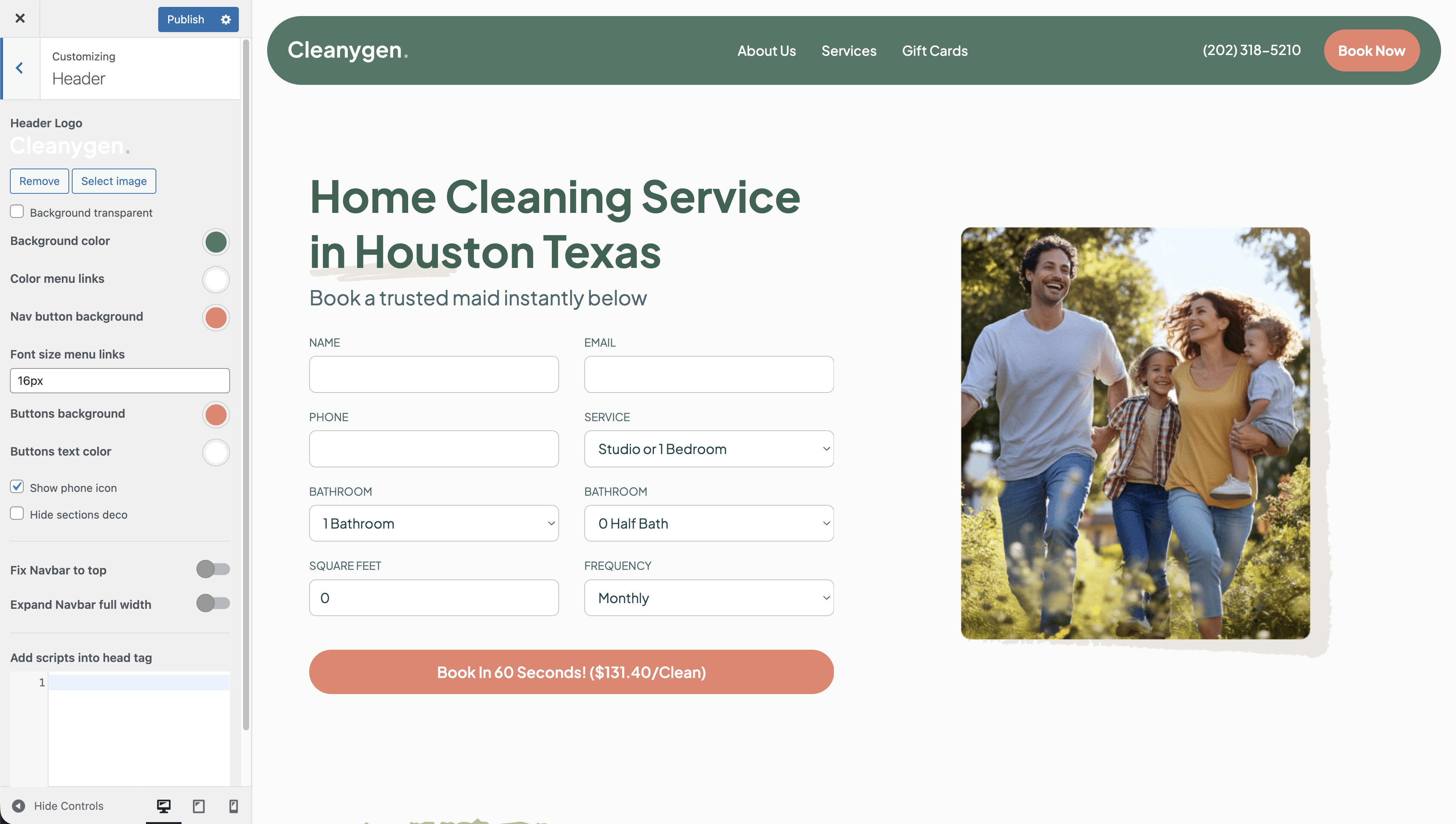
Header updates apply to the navigation area displayed at the top of all pages.
Customize the Footer
- In the Customize panel, click Footer.
- You can edit the following footer options:
- Footer logo
- Contact information (email, phone number, address)
- Copyright text
- ConvertLabs code embed (commonly used for widgets)
- Footer background color
- Subfooter background color
- Custom scripts or tags added after the footer
- Social media icons and links
- Footer buttons, such as Login (for linking to a customer portal) or Booking
- Font size
- Line height and letter spacing
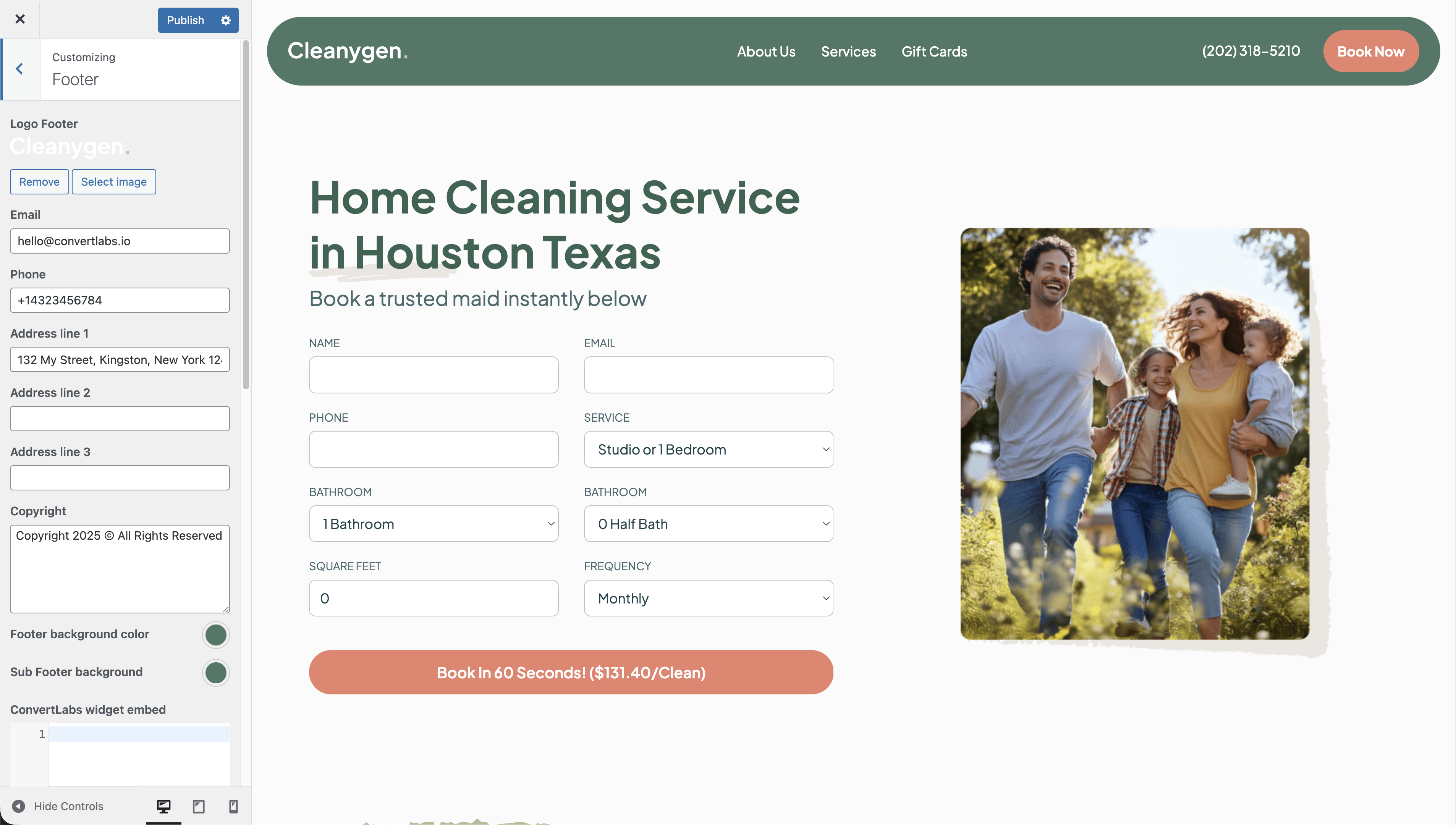
Footer changes are reflected across all pages of your website.
Using the Customize panel, you can:
- Add or update your logo
- Adjust colors and typography
- Manage navigation and footer buttons
- Display contact details and social media links
- Embed scripts and third-party widgets
All header and footer settings are global and ensure consistent branding and functionality throughout your website.
