Pages are structured into sections (tabs), each containing editable fields that allow you to replace text, images, or other content without altering the page layout.
Edit a Page from the Pages Menu
- Go to your Website Dashboard.
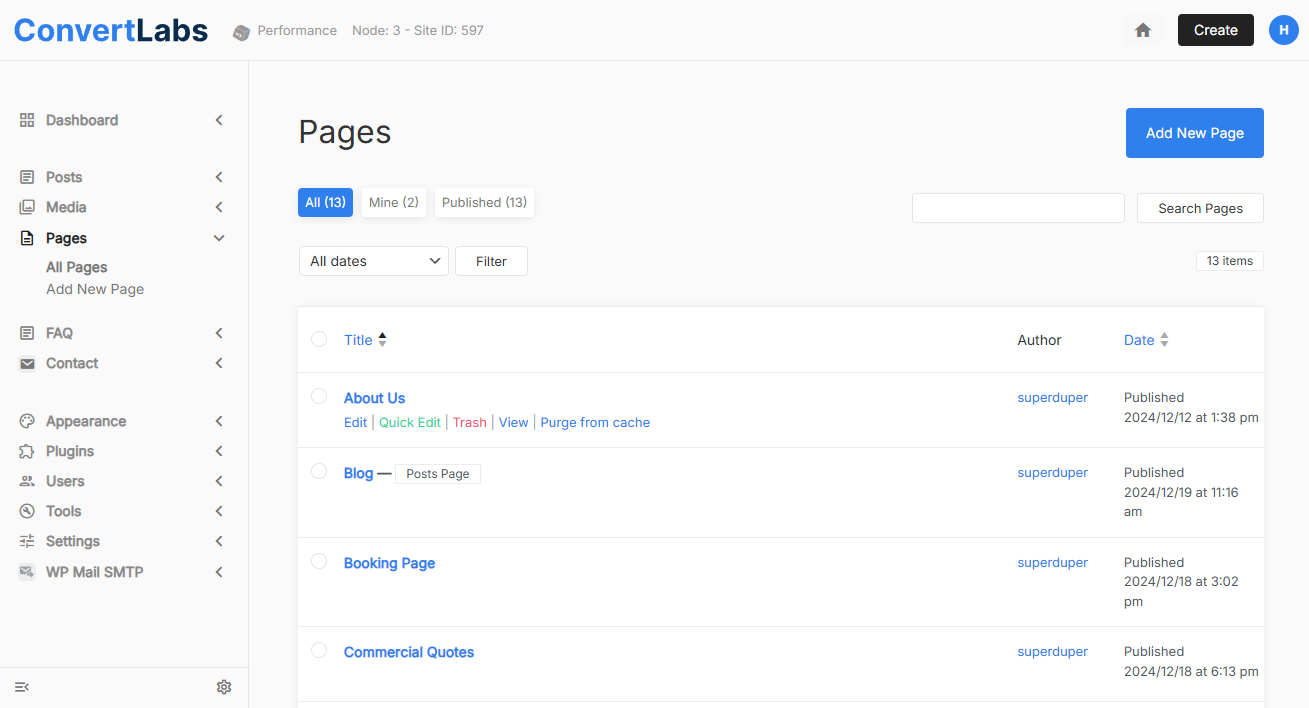
- In the left-hand menu, click Pages.
- Hover over the page you want to edit and select Edit Page.
- The page editor will open, displaying page sections organized into tabs and their custom fields within each section.
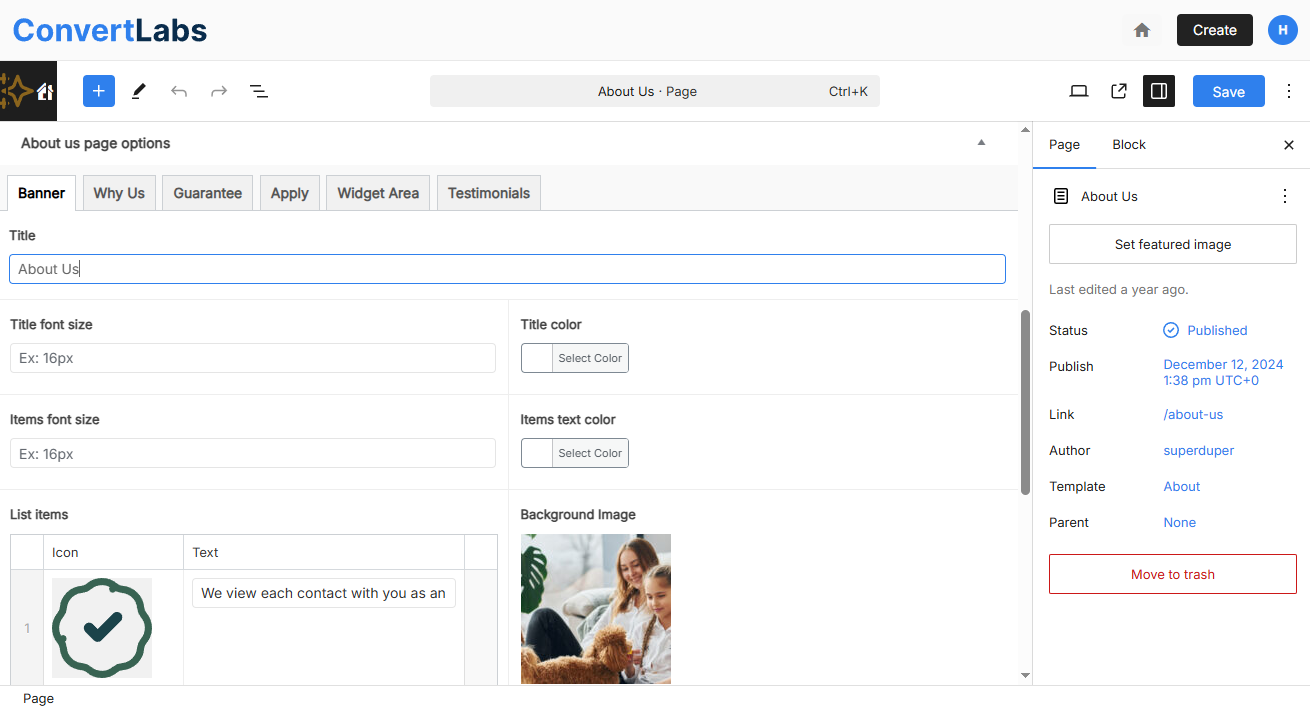
- Update the content in the relevant fields.
- Click Save to apply your updates.
Preview Your Changes
- Click the laptop icon in the upper-right corner of the editor.
- The page will open in a new browser tab, showing the updated content.
Use this view to review your changes and make further adjustments if needed.
Use Quick Edit for Basic Page Updates
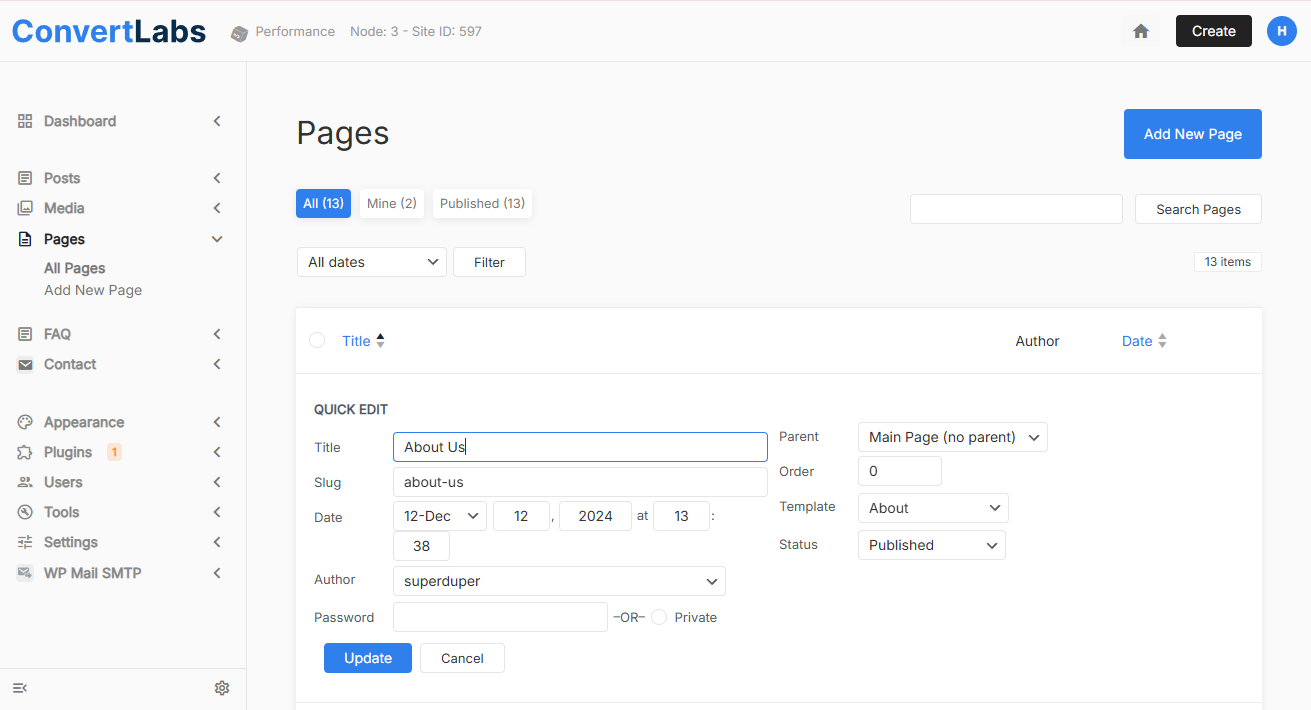
From the Pages list, you can also click Quick Edit for faster, limited updates.
This option allows you to:
- Modify the page URL
- Change the page status (Draft or Public)
- Update the page title
Edit a Page Directly from the Live Website
- Go to your website dashboard.
- Click the home icon in the upper-right corner.
- Your website will open in real time with the editor bar displayed at the top.
- Navigate through the main menu or footer menus to find the page you want to edit.
- Click Edit Page to open that page’s editor and update its content.
Notes: Websites are built using predefined themes. Each theme has a fixed structure with predefined pages, sections, and custom fields. You can edit the existing content, but you cannot add new sections or custom fields. However, you can create new pages using the available templates.
