You can fully manage these menus by adding or removing pages, renaming menu items, and changing their order.
Accessing the Menu Editor
- You can access the Menus section in two ways:
- From the top editor bar, click your company name and select Menus.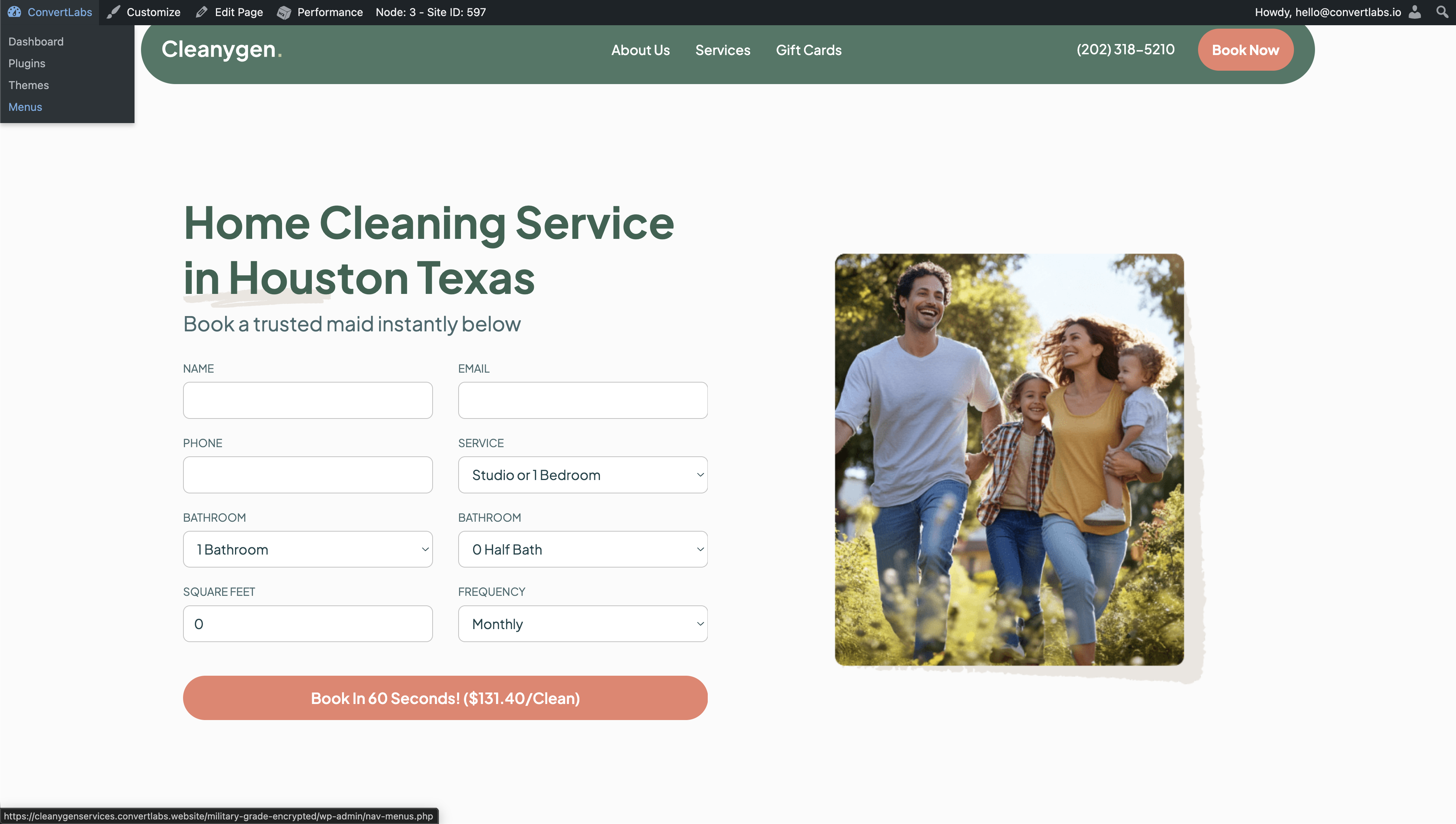
- From the dashboard, go to Appearance > Menus.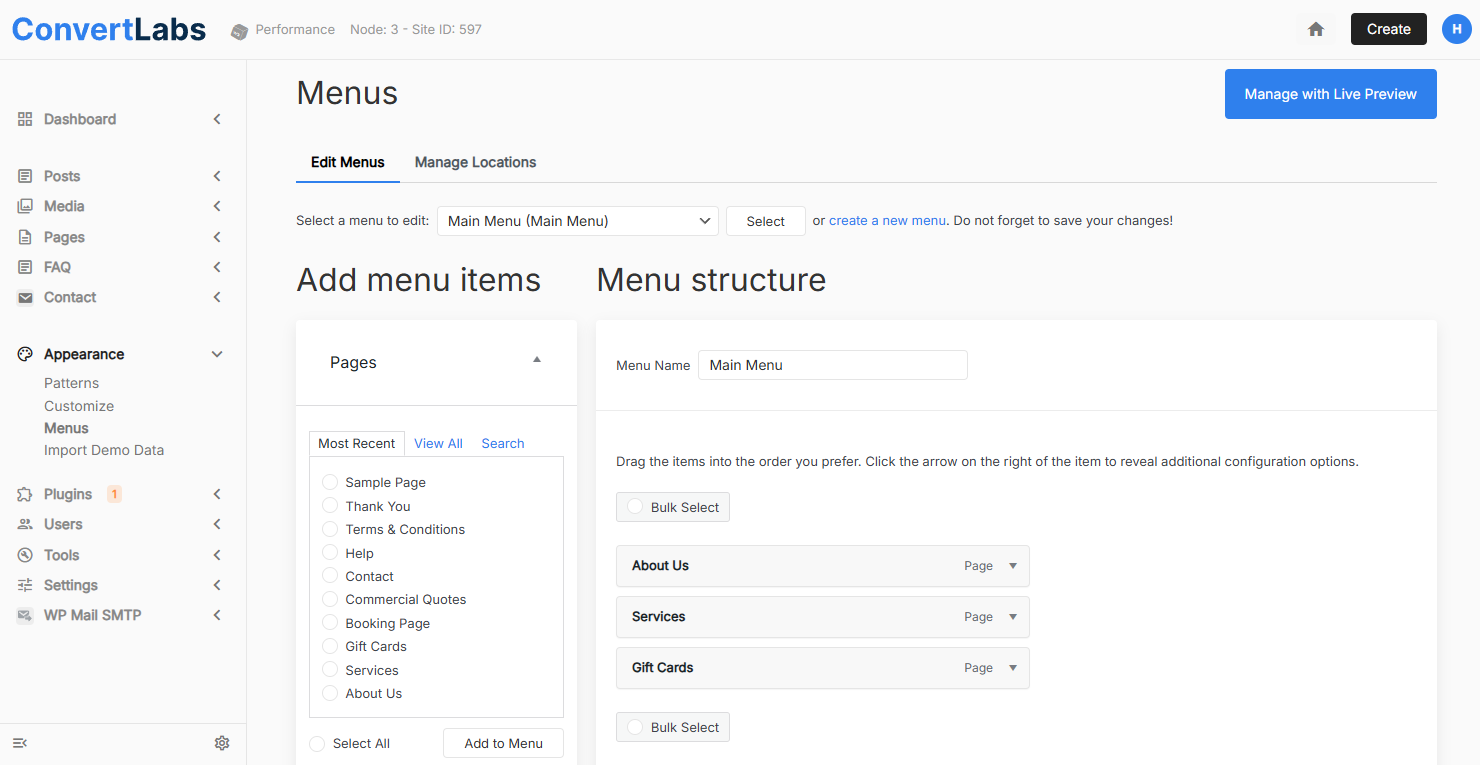
- At the top of the Menus view, you will see the option Select a menu to edit.
- Open the drop-down list and choose the menu you want to modify (for example, Header Menu or Footer Menu).
- Click Select.
The page is divided into two main sections:
- Add Menu Items
- Menu Structure
Adding Menu Items
In the Add Menu Items section, you can add existing pages, posts or custom links to the selected menu.
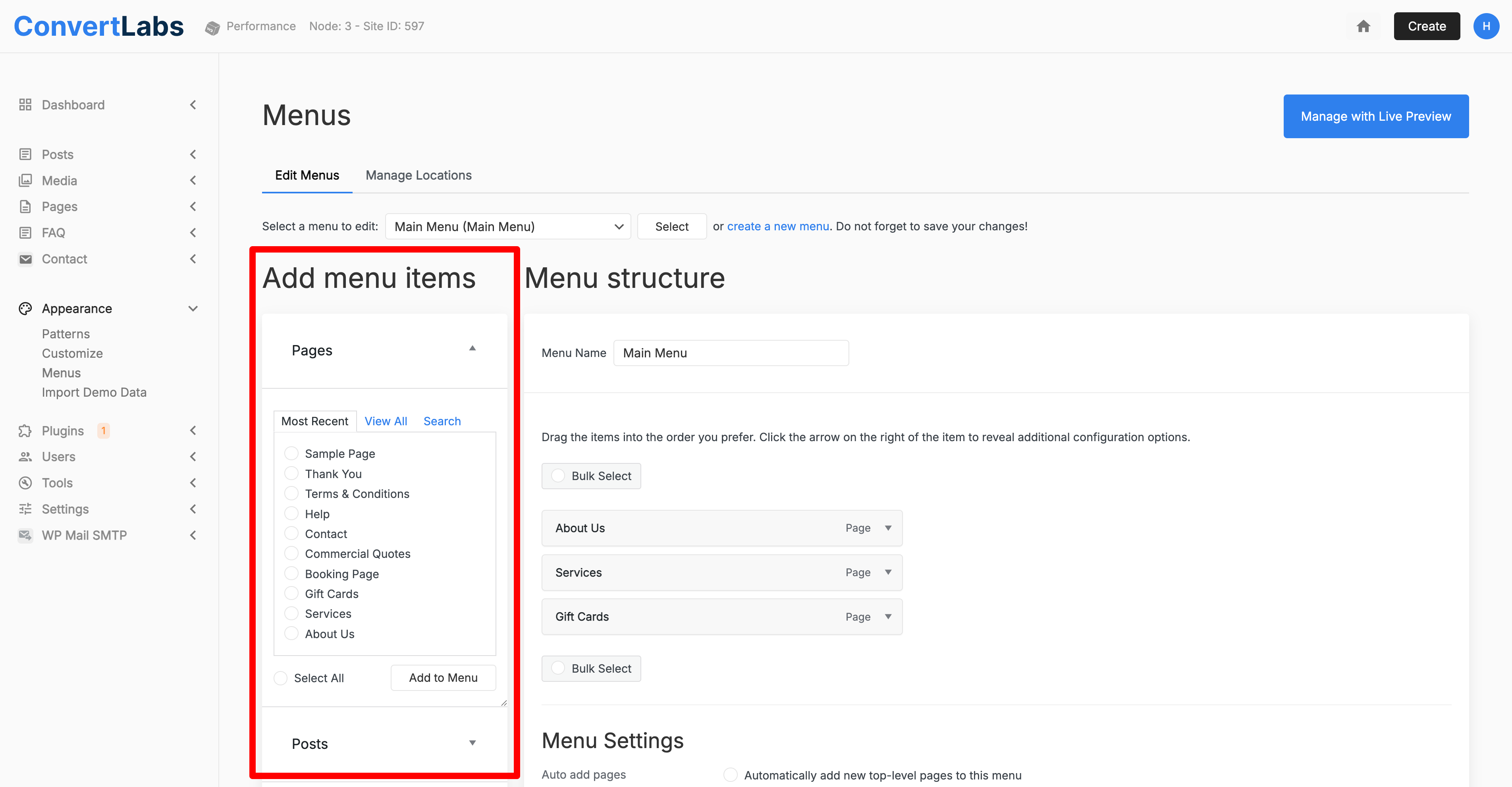
To add a page:
- Locate the page you want to include.
- Select the checkbox next to the page name.
- Click Add to Menu.
- The page will immediately appear in the Menu Structure section.
To add Posts:
- Click on Posts.
- Locate the post you want to include.
- Select the checkbox next to the post name.
- Clicck Add to Menu.
- The post will immediately appear in the Menu Structure section.
To add Custom Links:
If you'd like to include an external link you can use this tool.
- Click on Custom Links.
- Enter the URL of the page, make sure to include https://
- And in the link text field enter the navigation label.
Editing the Menu Structure
The Menu Structure section displays all items currently included in the menu. From here, you can organize and customize how the menu appears on your website.
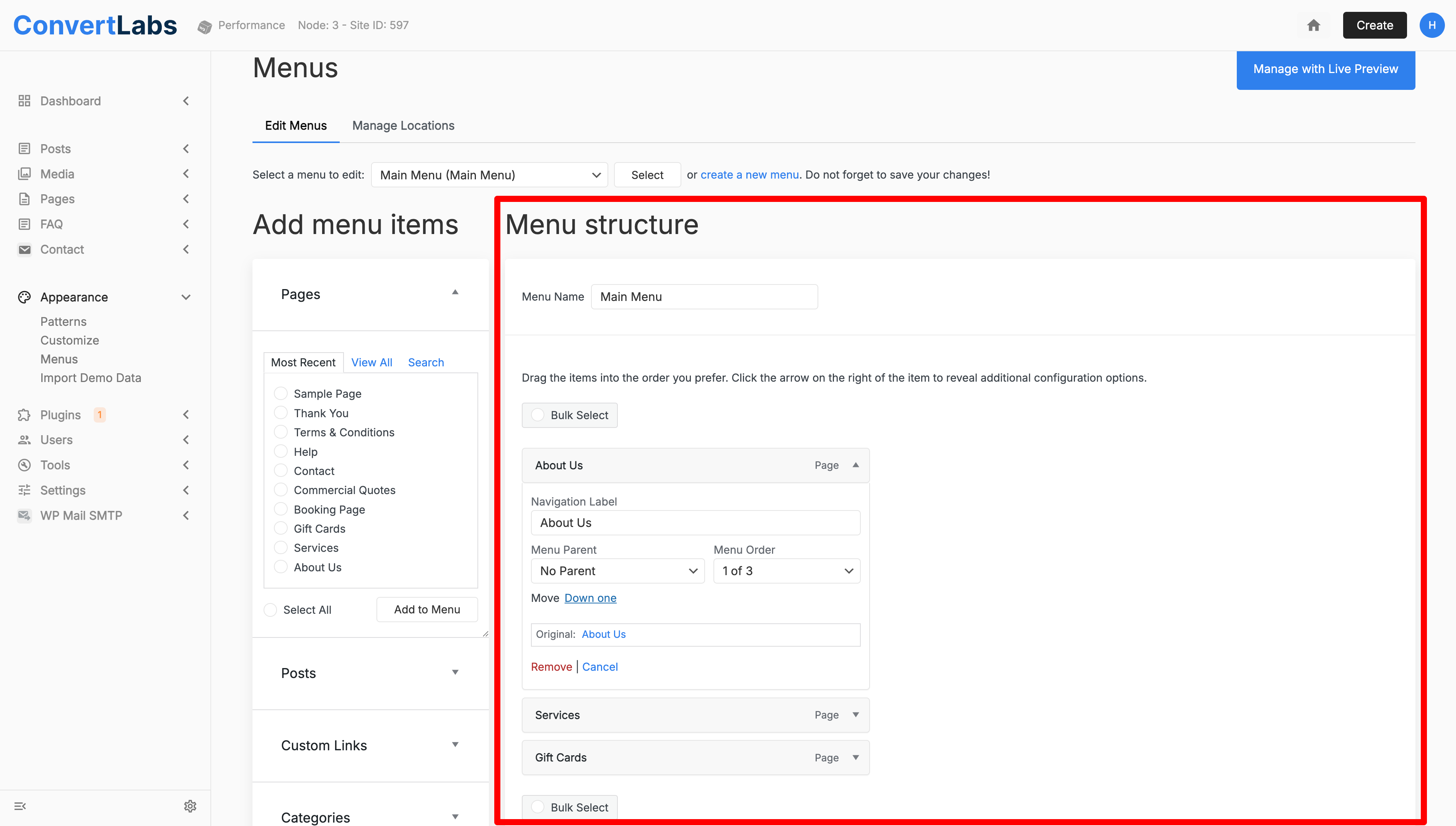
You can:
- Reorder menu items by dragging and dropping them into the desired position.
- Rename menu items by clicking the arrow next to a menu item and editing the Navigation Label (for example, changing “Contact” to “Contact Us”).
- Remove menu items by clicking the arrow next to the item and selecting Remove.
After completing your edits, click Save Menu at the bottom of the page to apply your changes.
Editing Additional Menus
- To edit another menu, repeat the same process:
- Select a different menu from the drop-down list.
- Click Select.
- Make your changes and save the menu.
All updates take effect immediately once the menu is saved.
