On this page
- How tips work
- Turning tips on
- Where customers can tip
- Adding a tip from the dashboard
- After a booking is tipped
How tips work
- A tip is always separate from the booking: it is charged on its own and is never added to the booking total, taxes, or breakdown.
- Each booking can receive one tip.
- Tips can only be left on finished services (charged/paid bookings).
- Suggested amounts are 15%, 18% and 20% of the service price before taxes and processing fees, plus an Other Amount option.
Turning tips on
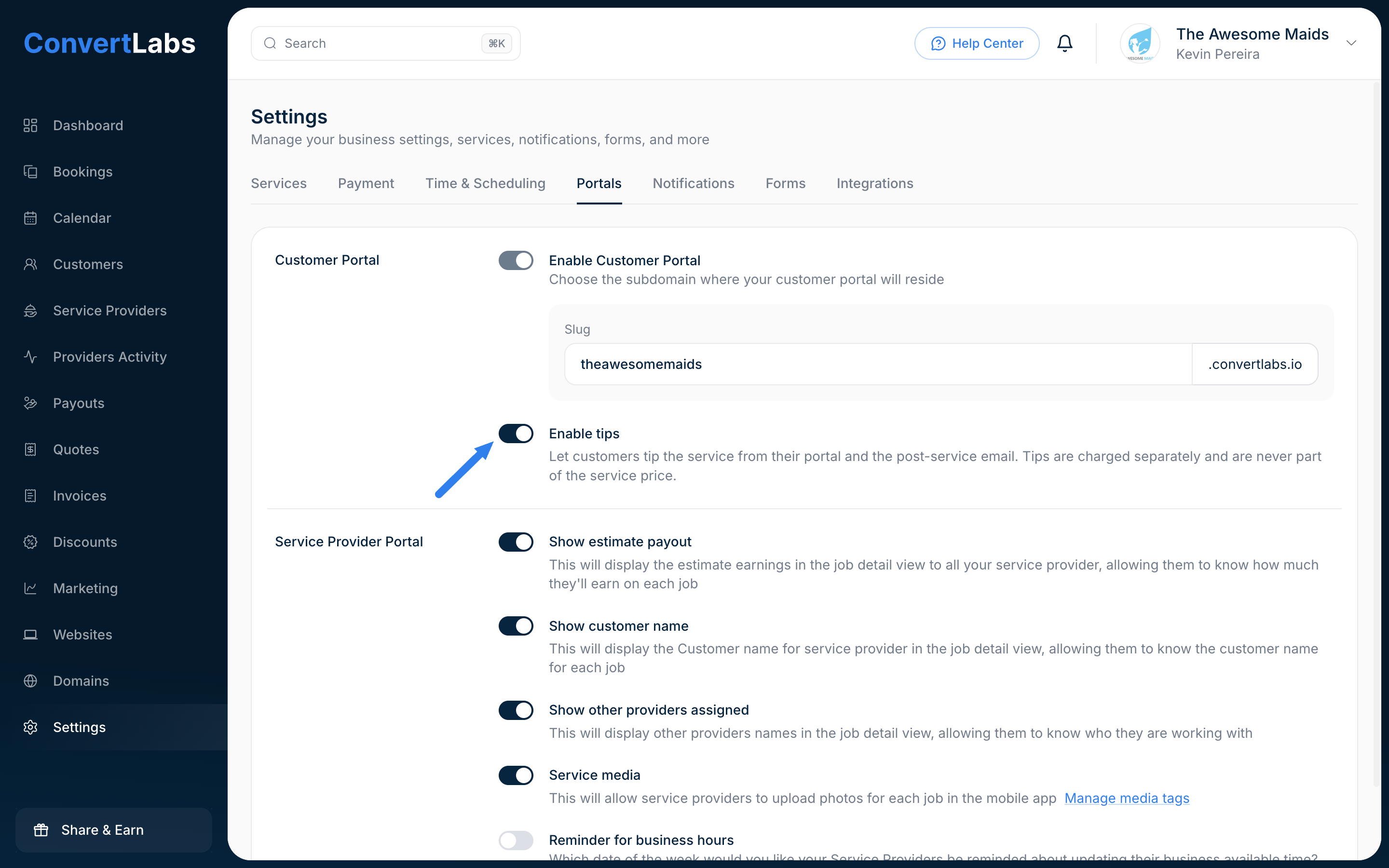
Tips are off by default. Go to Settings > Portals > Customer Portal and turn on Enable tips. The setting applies to your whole company, you need Stripe connected and having set up the subdomain for your Customer Portal.
Where customers can tip
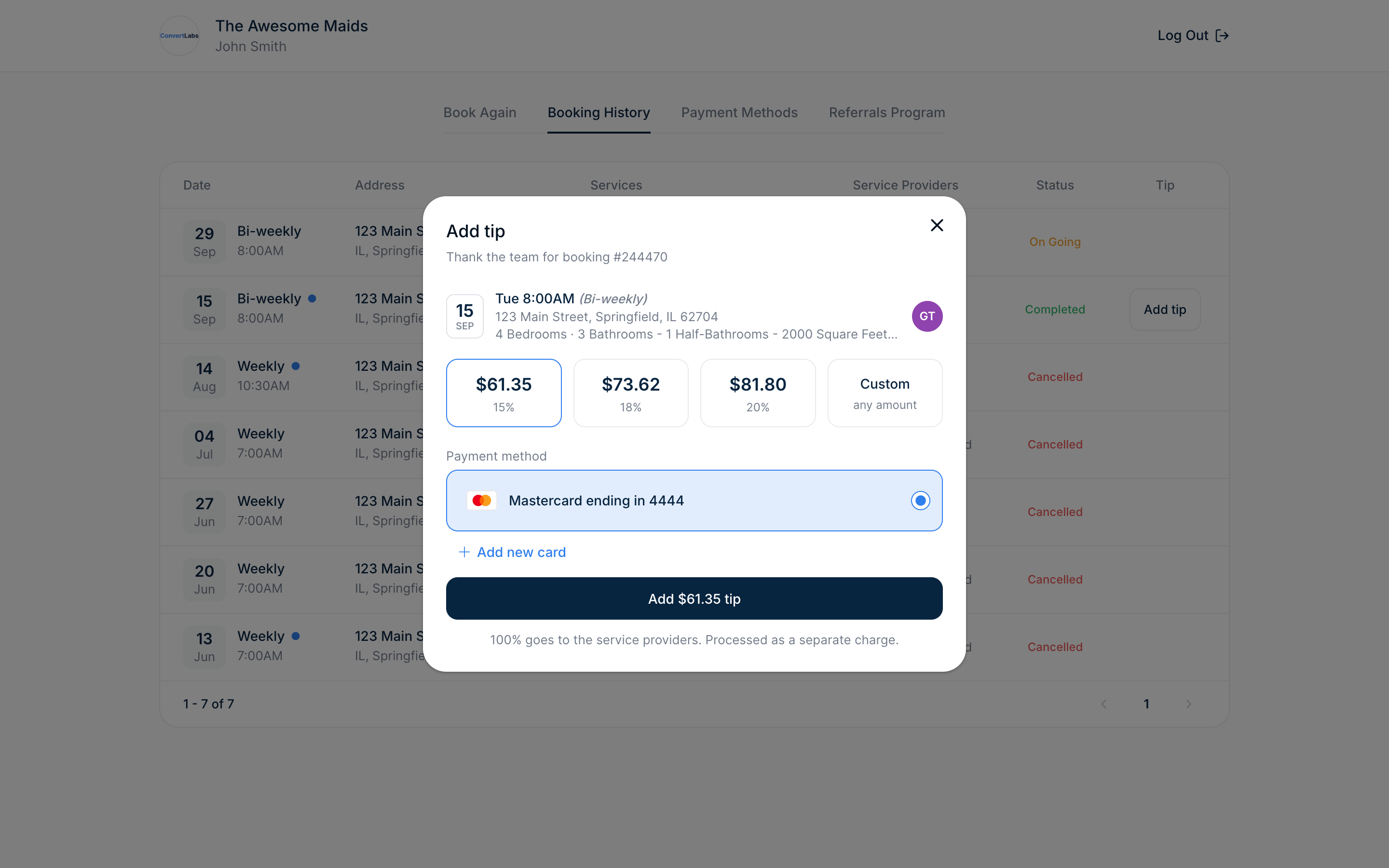
1. In their Customer Portal. Finished bookings show an Add tip button in the bookings list and inside the booking details. The dialog shows the service summary, the assigned providers, the suggested amounts, and their saved card (they can also add a new one).
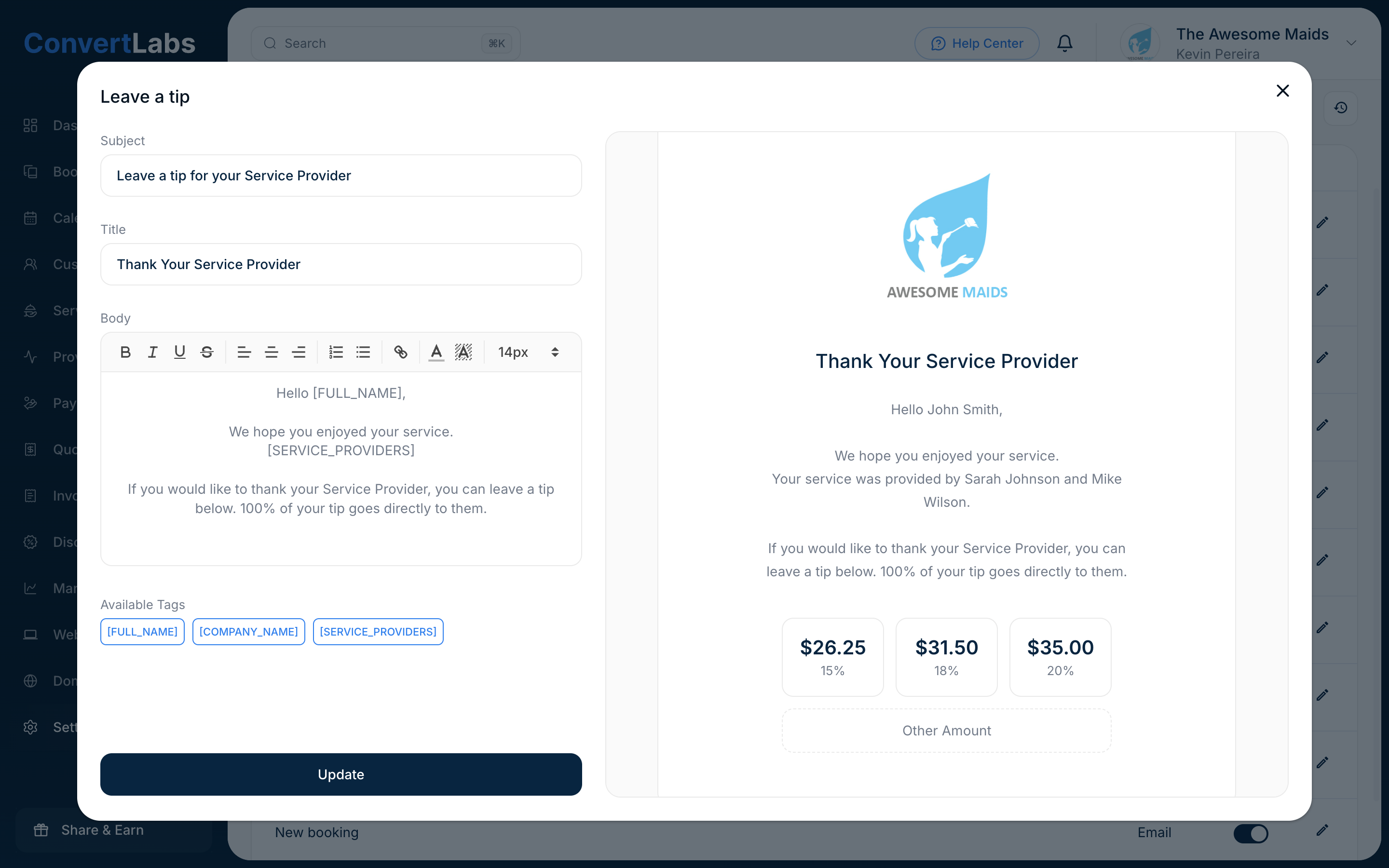
2. From the "Leave a tip" email. It goes out automatically 4 hours after a booking is completed. It shows the suggested amounts as buttons; each one opens the customer's portal with that amount preselected, and the customer always confirms before being charged. The email never charges on its own.
You can edit its subject and text, or turn it off, under Settings > Notifications > Leave a tip (the row appears once tips are enabled).
For these first two options you need to have the Customer Portal active, otherwise the customer will not be able to perform the tip on their own.
Adding a tip from the dashboard
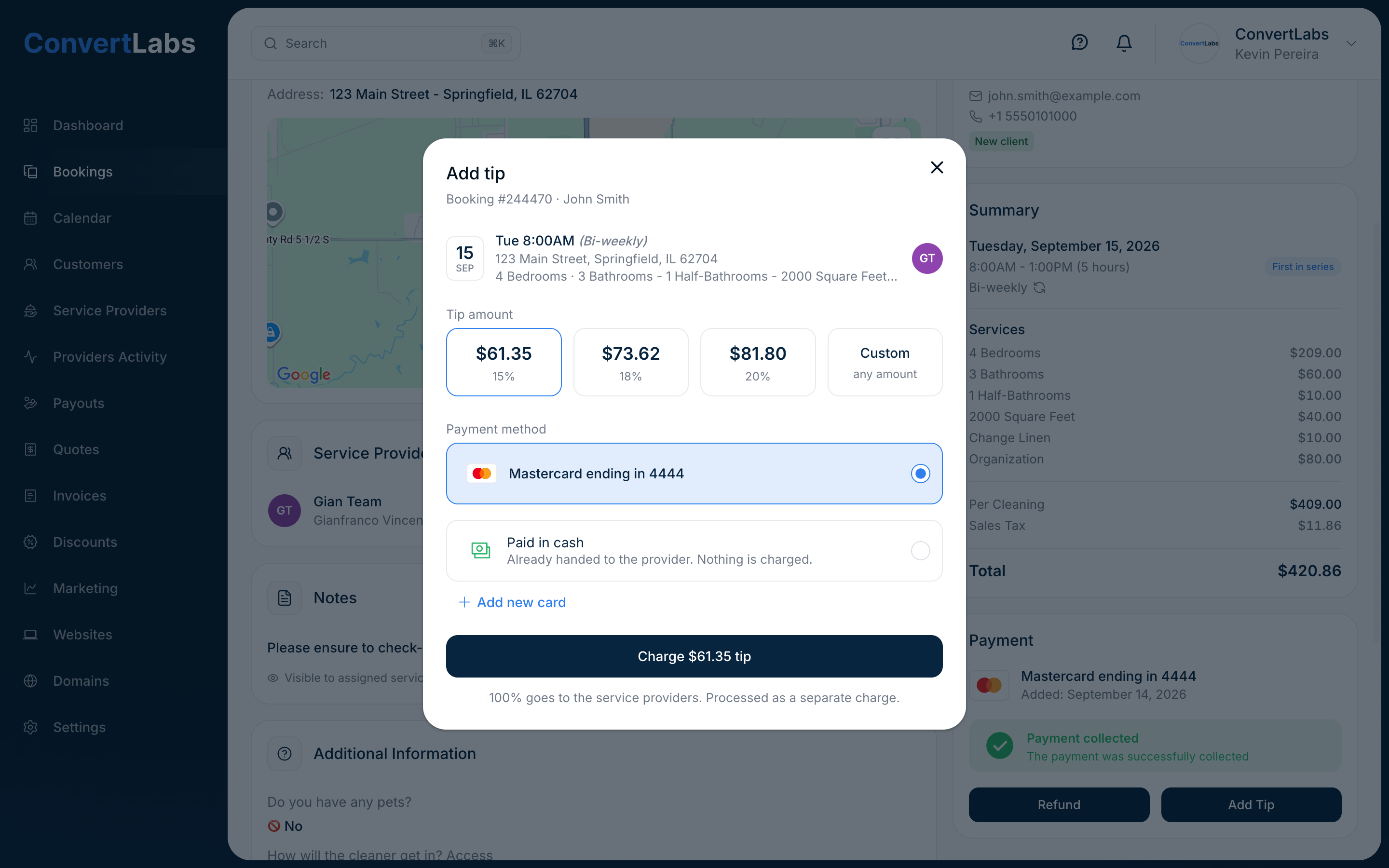
Open the booking and click Add Tip in the Payment section. You can:
- Charge card: uses the customer's card on the booking, another saved card, or a new one you type in.
- Paid in cash: records a tip the customer handed to the provider directly. Nothing is charged.
Every tip added from the dashboard is written to the booking's activity log.
After a booking is tipped
- The tip appears below the Total in the booking summary, marked card or cash, with a shortcut to the charge in Stripe.
- The Add Tip buttons disappear and the email links simply open the portal: a booking is never tipped twice.
Card fees: the tip is charged on your Stripe account and the full tip amount is owed to the provider; processing fees are not deducted from it.
