Websites are built using themes, predefined structures that simplify editing and allow you to update content while maintaining a consistent layout and design aligned with your brand.
How to Access the Website Editor
- Log in to your ConvertLabs account.
- Navigate to the Websites menu.
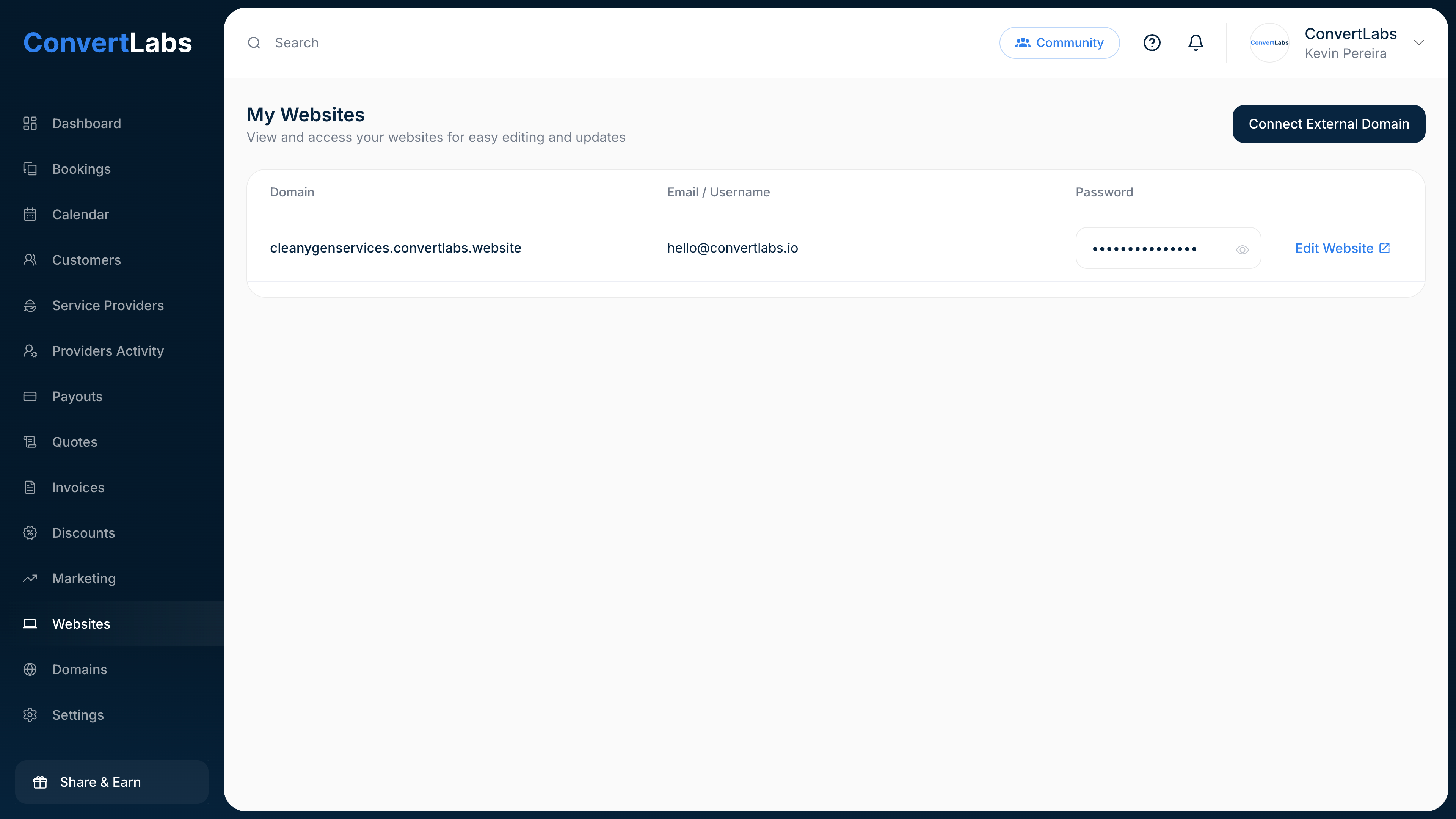
- Click Edit Website.
- This action automatically logs you in as an administrator, you will be redirected to the Website Dashboard.
Dashboard Overview
On the left-hand side, you will see the main navigation menu with options such as: Posts, Media, Pages, FAQ, Contact, Appearance, Plugins, Users, Tools, Settings...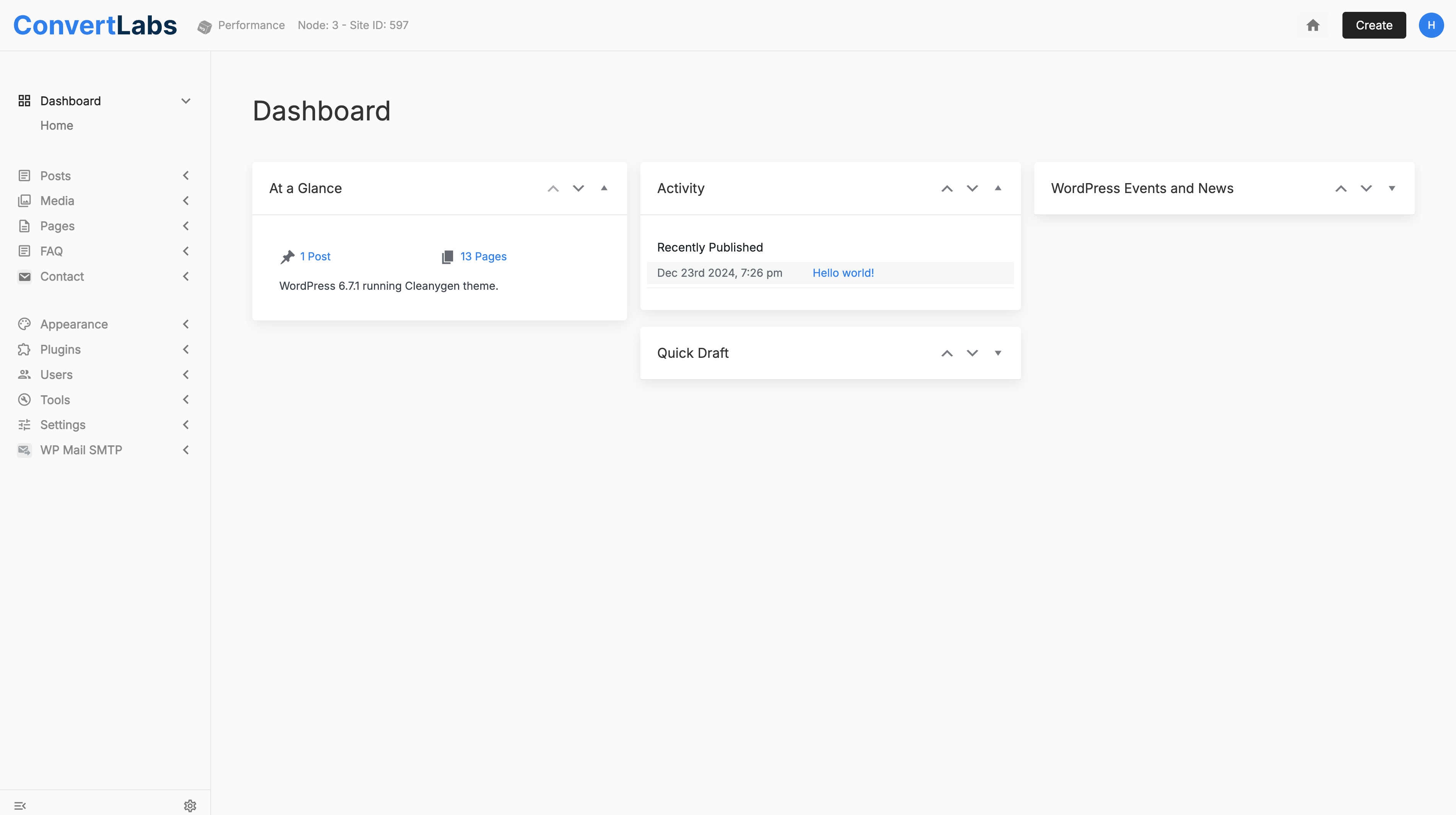
This menu allows you to manage aspects of your website’s content and configuration. - Click the house icon in the upper-right corner to view your website with the editor bar at the top. From here, you will see:
- The main navigation menu (header)
- Footer menus
- The top editor bar with options such as Customize and Edit Page
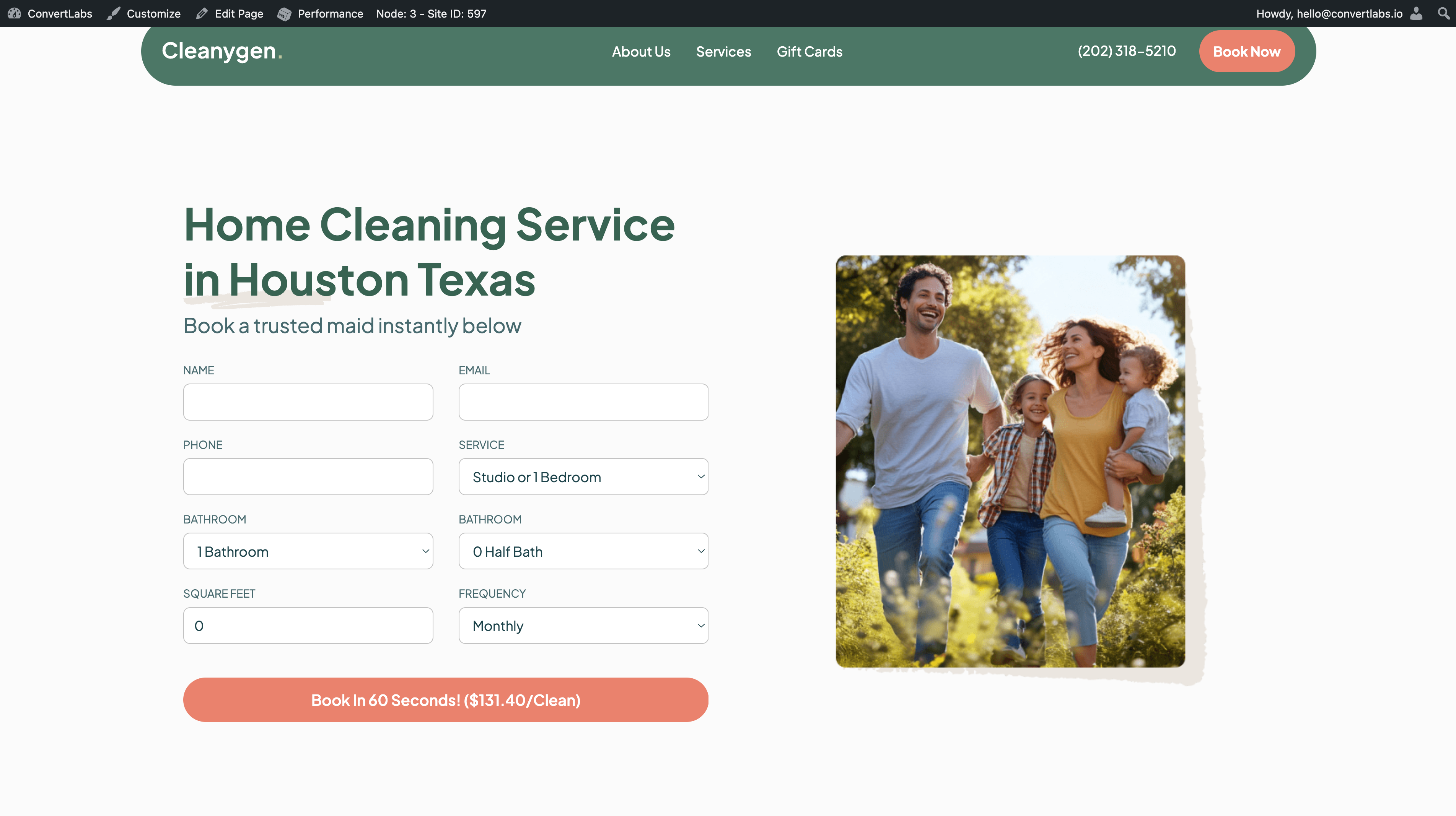
Customize Header, Footer, and Global Settings
- Click Customize in the top editor bar.
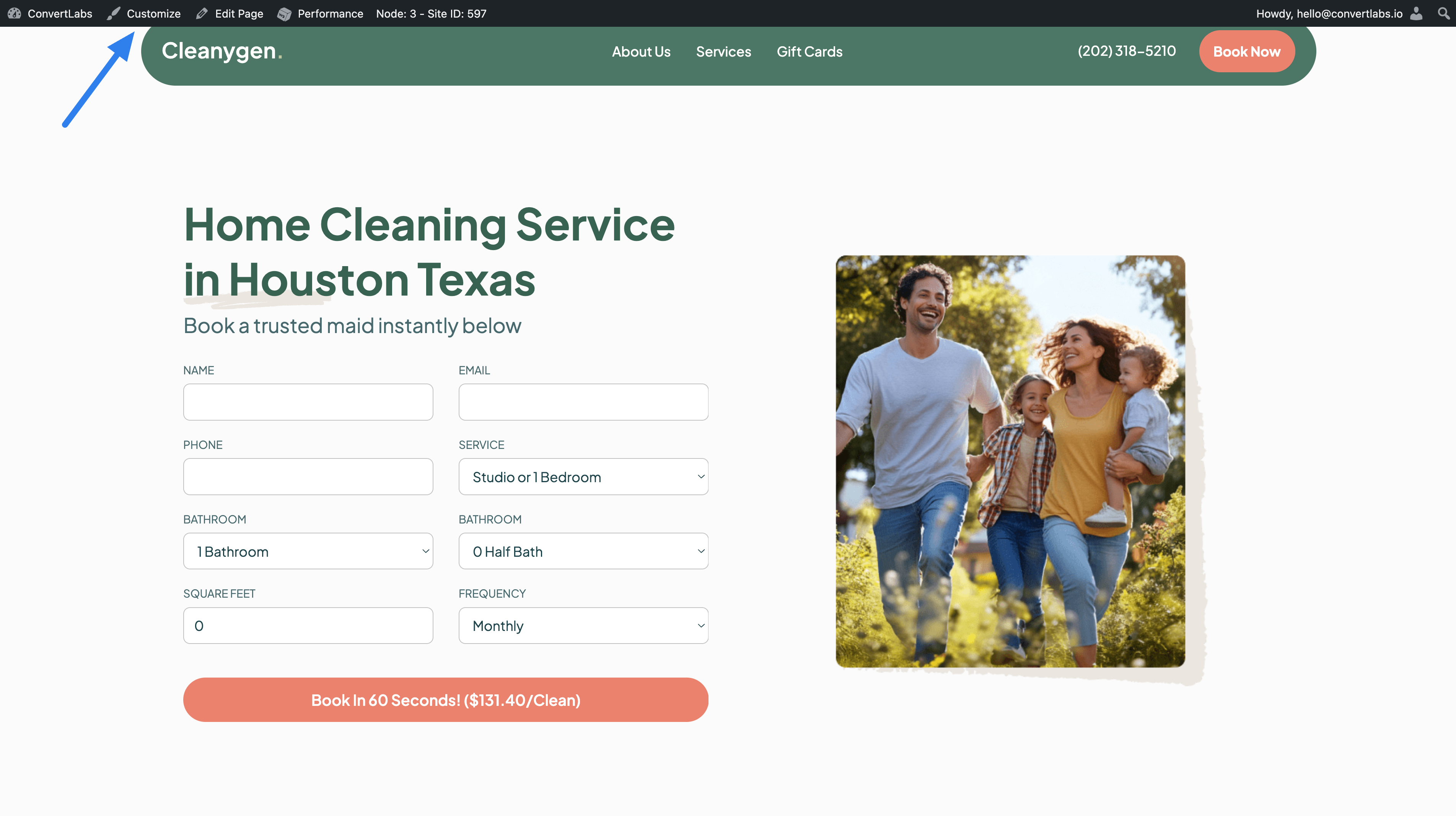
- In the customization panel, you can manage global website settings, including:
- Header
- Footer
- Site identity (logo, site name, tagline)
- Blog settings
- Other general design options
Edit Pages Directly from the Live Website
- Use the website navigation menu to open the page you want to modify.
- Click Edit Page.
- The page editor will open, displaying page sections organized into tabs and their custom fields within each section.
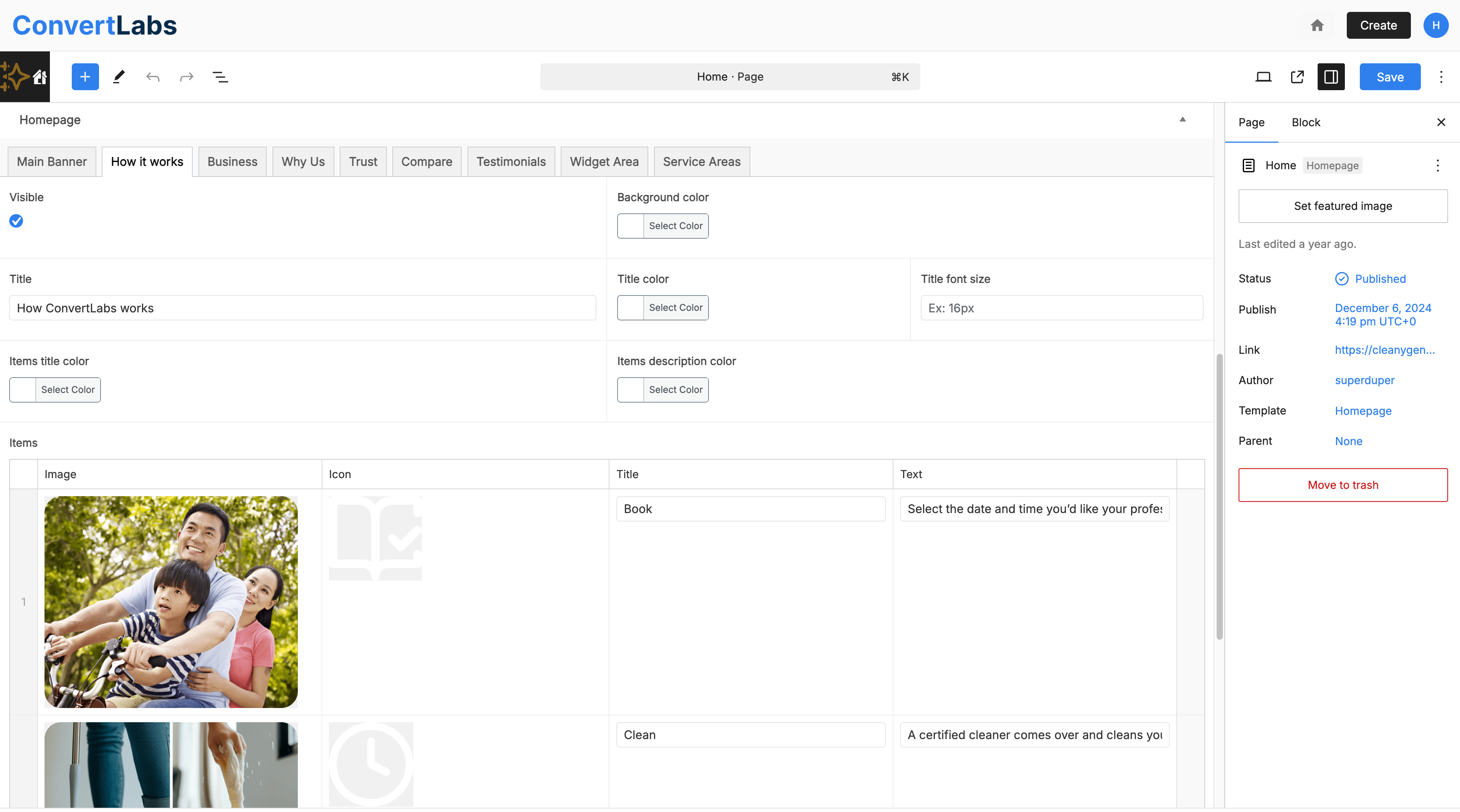
- Update the content in the relevant fields.
- Click Save to apply your updates.
Edit a Page from the Pages Menu
You can edit individual pages directly from the Pages section in the dashboard.
- From the left-hand menu, click Pages.
- Hover over the page you want to edit. The following options will appear:
- Edit
- Quick Edit
- Trash
- View
- Purge from Cache - Click Edit to modify the page content.
- The page editor will open.
- Update the content in the relevant custom fields.
- Click Save to apply your changes.
Use Quick Edit for Basic Changes
The Quick Edit option allows you to make fast updates without opening the full editor. From here, you can:
- Edit the page URL
- Update the page title
- Change the page status (Draft or Published)
This option is ideal for simple adjustments that do not require modifying page content or layout.
Create New Pages
You can create new pages at any time using a predefined template, or the default page template provided by the system.
Check out our article on 'Edit Page Content and Section' for more information.
