You can easily create and manage service providers in ConvertLabs.
Once created, each provider receives a welcome email and SMS containing their login link. This gives them access to their portal, where they can:
-
View assigned jobs and invitations.
- Track time worked by checking in and checking out.
-
Manage their schedule.
-
Adjust their availability for the current and next week (useful for changes such as appointments or time off).
➕ Create a New Service Provider
-
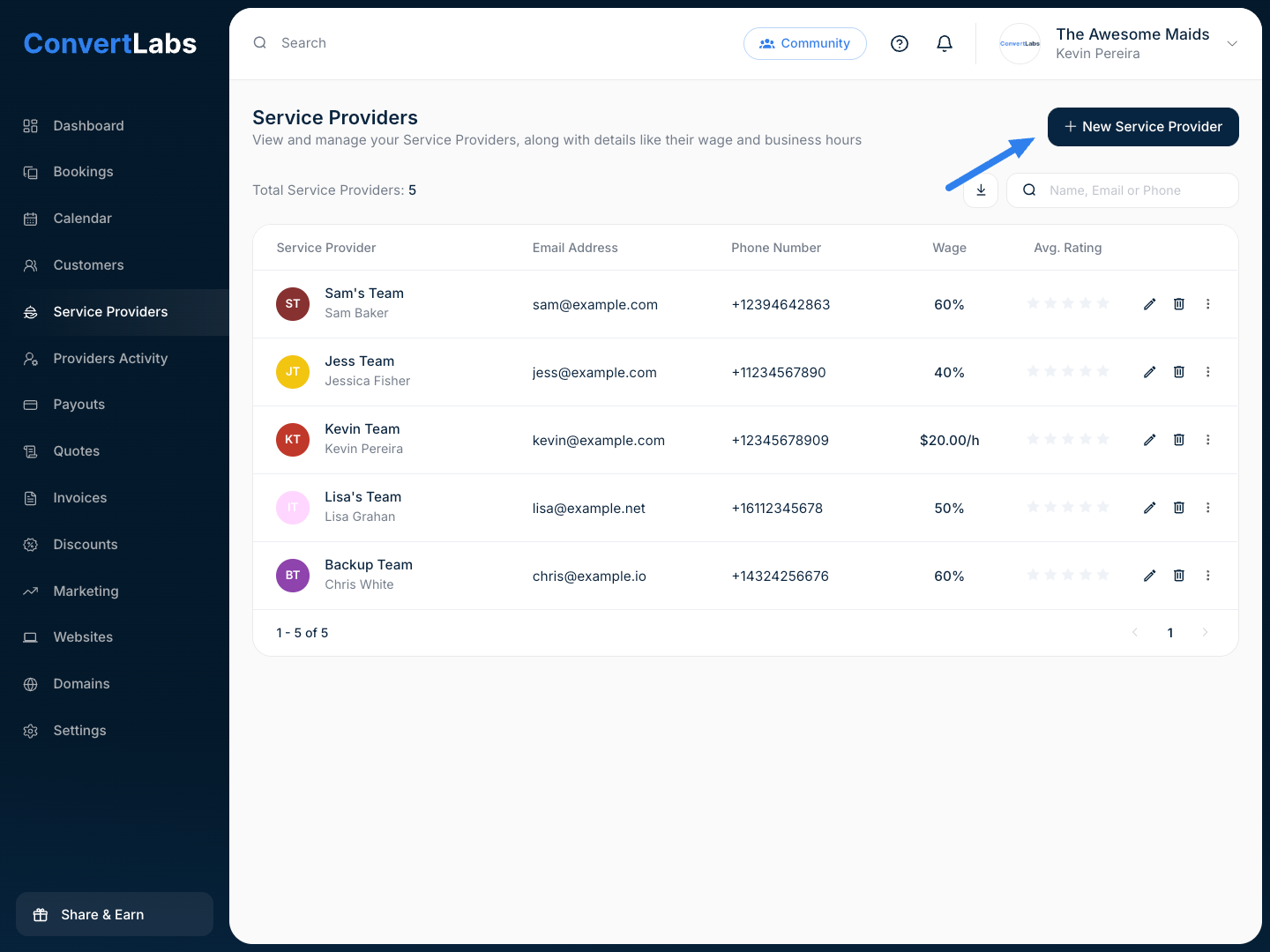
Go to the Service Providers tab.
-
Click "+ New Service Provider" in the upper-right corner.
-
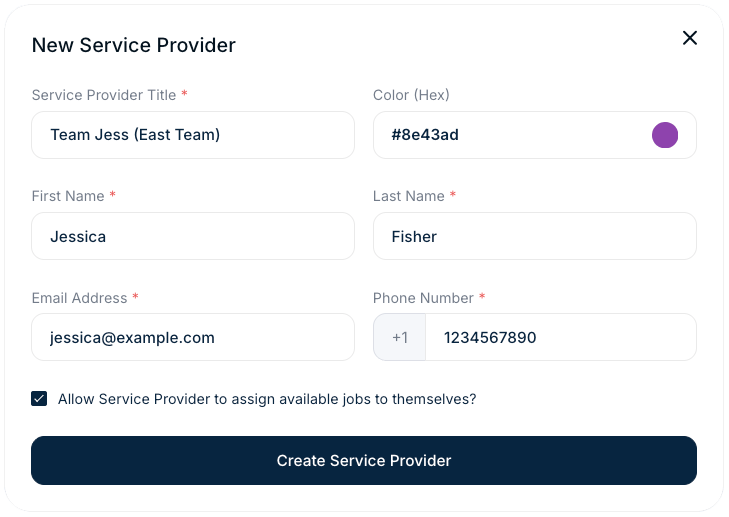
Fill out the following details:
-
Title — Visible to you, the provider, and clients.
-
First Name.
-
Last Name.
-
Email Address.
-
Phone Number.
-
⚙️ Self-Assignment Setting
At the bottom of the New Service Provider window, you’ll see a checkbox:
“Allow Service Provider to assign available jobs to themselves?”
✅ When enabled, the provider can self-assign open jobs directly from their portal under the Open Jobs tab.
🚫 When disabled, they will only see jobs that have been assigned or invited to them.
💰 Set Providers Wage
You can check our article about how to set providers wage here
✅ Summary
-
Create Service Providers → via the Service Providers menu.
- Enable self-assignment → if you want them to claim available jobs.
- Learn how to set wages, whether hourly or percentage-based — in our dedicated article.
- See how to assign or invite a Service Provider to a booking in our step-by-step guide here.
